
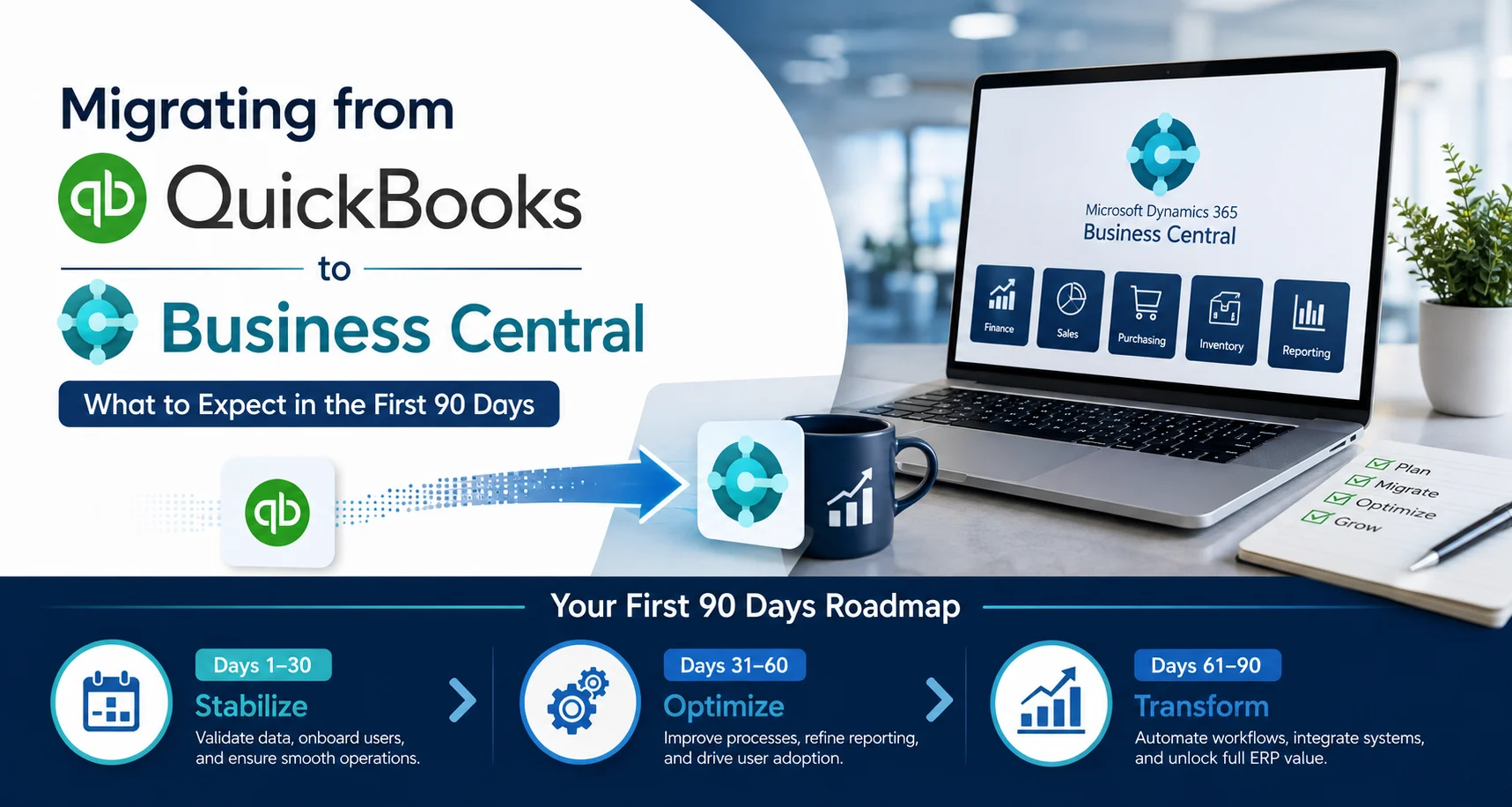
Moving from QuickBooks to Microsoft Dynamics 365 Business Central is more than a software upgrade. It is a business transformation that can change how finance, sales, purchasing, inventory, reporting, and operations work together.
For growing businesses, QuickBooks can eventually become restrictive when processes become more complex, multiple departments need connected data, or management needs stronger reporting and control. Business Central, by contrast, provides a broader ERP platform designed to bring core business processes into one environment.
However, the success of a QuickBooks to Business Central migration depends on what happens before, during, and after the data transfer.
The first 90 days are especially important.
During this period, your organization moves from simply using a new ERP system to actually operating effectively within it. Therefore, businesses should treat the first three months as a structured Business Central implementation and optimization period, rather than simply a software go-live.
This guide explains what to expect during the first 90 days, what data typically moves from QuickBooks, where challenges can appear, and how to make the transition smoother.
Quick Answer: What Happens After Migrating from QuickBooks to Business Central?
After migrating from QuickBooks to Business Central, the first 90 days typically involve four major stages:
- Days 1–30: Stabilization, data validation, user onboarding, and issue resolution.
- Days 31–60: Process optimization, reporting improvements, workflow refinement, and deeper user adoption.
- Days 61–90: Performance review, automation, advanced configuration, and long-term ERP optimization.
- After Day 90: Continuous improvement, support, integrations, and strategic use of Business Central.
The objective is not simply to make Business Central work. Instead, the objective is to make it work better for your business than QuickBooks did.
Microsoft provides dedicated migration functionality for QuickBooks. Depending on the source system and migration approach, Business Central can transfer information such as customers, vendors, items, accounts, opening balances, inventory quantities, and certain open documents. However, not every QuickBooks transaction or workflow automatically maps perfectly into Business Central.
Why Businesses Move from QuickBooks to Business Central
QuickBooks is widely used for accounting and financial management. However, as a company grows, accounting may no longer be the only system that needs attention.
Businesses often reach a point where they need:
- Centralized financial and operational data
- Better inventory management
- More structured purchasing processes
- Advanced financial reporting
- Approval workflows
- Role-based access and controls
- Better sales and customer visibility
- Integration with Microsoft products
- Business intelligence and dashboards
- Scalable ERP functionality
Business Central brings finance together with areas such as sales, purchasing, inventory, project management, warehouse management, manufacturing, and fixed assets.
Therefore, the migration is not simply about replacing accounting software.
It is about creating a stronger operational foundation.
What Does a QuickBooks to Business Central Migration Involve?
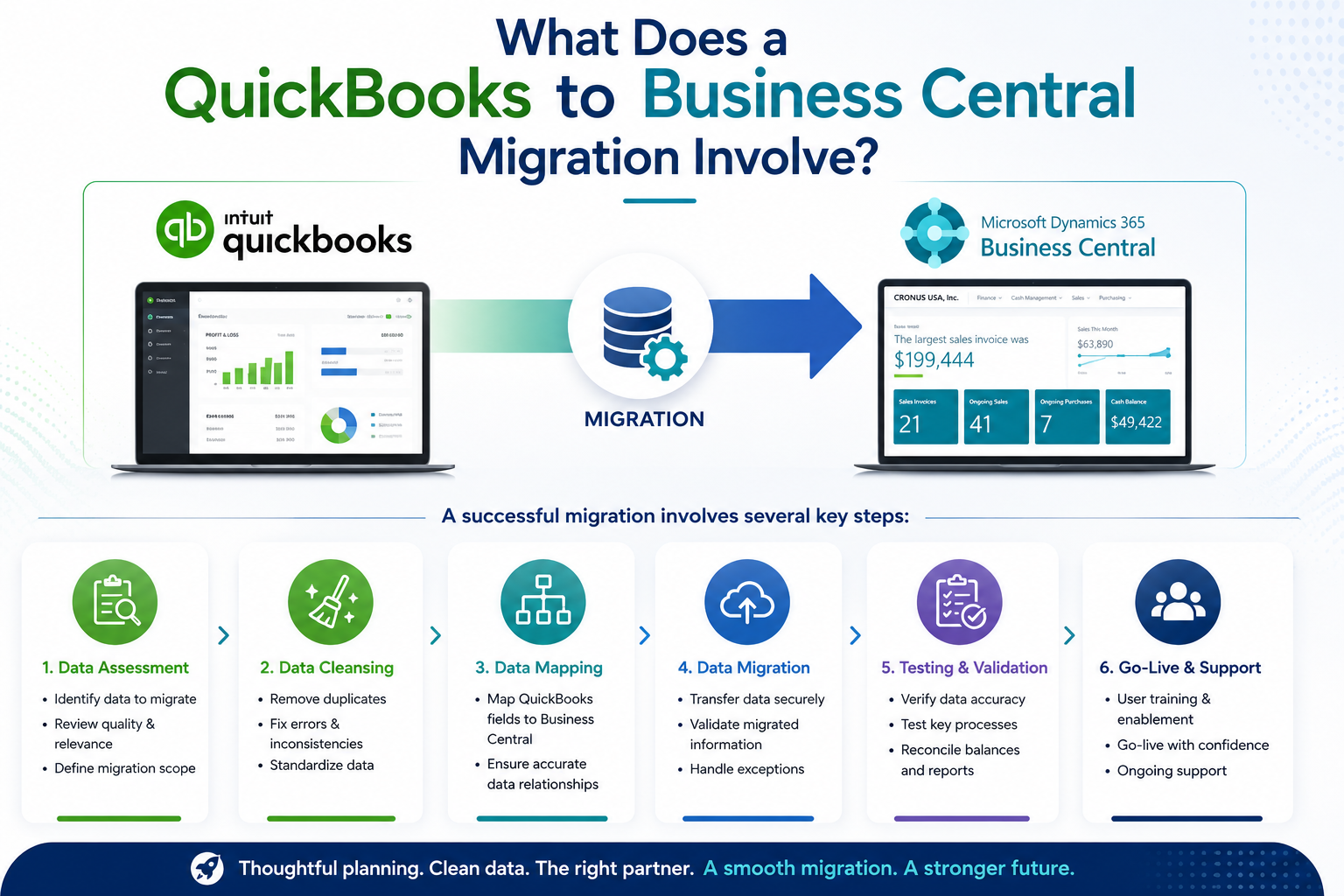
A successful migration generally has several components:
1. Data assessment
Before moving anything, your team should determine what data actually needs to be migrated.
This includes reviewing:
- Customers
- Vendors
- Chart of accounts
- Items
- Inventory
- Open invoices
- Open credit memos
- Payments
- Beginning balances
- Historical transactions
- Tax information
- Bank information
- Custom fields and records
The goal is to avoid moving unnecessary or inaccurate legacy data into the new ERP.
2. Data cleansing
Migration is an opportunity to clean your data.
For example, your QuickBooks database may contain:
- Duplicate customers
- Inactive vendors
- Incorrect item names
- Missing account numbers
- Outdated addresses
- Inconsistent product descriptions
- Old records that are no longer useful
Moving bad data into Business Central simply creates new problems.
3. Data mapping
QuickBooks and Business Central do not use identical structures.
Consequently, you need to determine how your existing data should map to the new ERP.
For example:
| QuickBooks Data | Business Central Equivalent | Migration Consideration |
|---|---|---|
| Customers | Customers | Validate names, addresses and payment terms |
| Vendors | Vendors | Review vendor information and terms |
| Items | Items | Review units, costing and inventory settings |
| Chart of Accounts | G/L Accounts | Map accounts carefully |
| Inventory | Item Inventory | Validate quantities and valuation |
| Open Invoices | Sales Documents | Reconcile outstanding balances |
| Open Bills | Purchase Documents | Validate vendor balances |
| Opening Balances | General Ledger | Reconcile against QuickBooks |
| Historical Data | Business Central history/archive | Decide what should be retained |
Microsoft’s QuickBooks migration tools support several important data categories, but there are limitations. For example, Microsoft’s documentation notes that purchase orders and sales orders are not migrated through the QuickBooks migration extension, while partially paid documents may require manual handling.
That is why migration planning matters as much as the migration itself.
The First 90 Days After QuickBooks to Business Central Migration
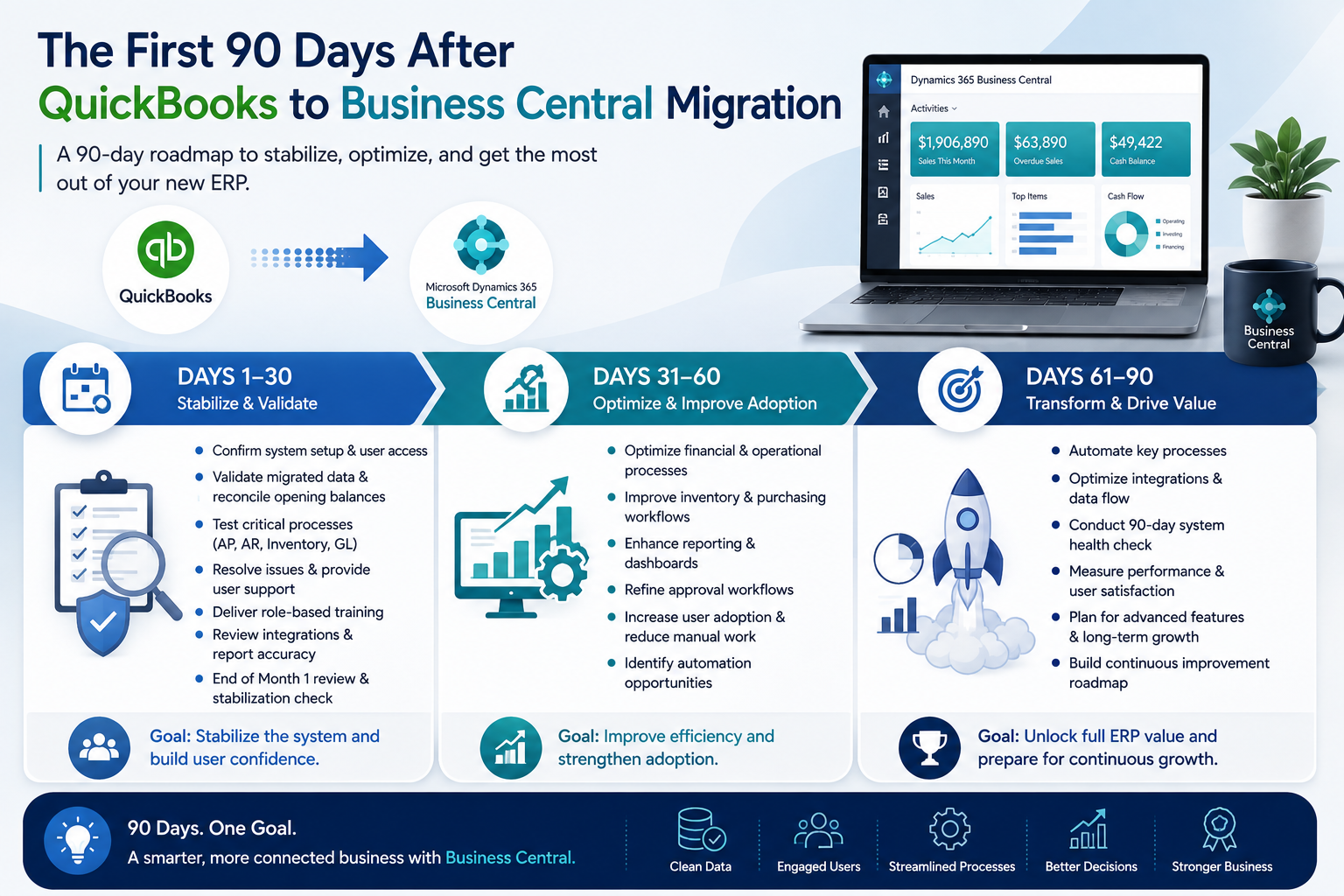
Days 1–30: Stabilize the New ERP Environment
The first month is about stability.
At this point, users are learning Business Central, finance teams are validating numbers, and management is checking whether everyday processes are working correctly.
Week 1: Confirm the Foundation
The first week should focus on confirming that the new environment is ready for daily operations.
Key activities include:
- Confirming user access
- Checking roles and permissions
- Validating company setup
- Reviewing currencies and tax configuration
- Checking posting groups
- Reviewing number series
- Validating bank accounts
- Confirming payment terms
- Checking dimensions
- Testing approval workflows
- Reviewing integrations
Business Central includes assisted setup tools that help organizations configure areas such as company information, approvals, email, and business data migration.
Week 2: Validate Migrated Data
This is one of the most important stages.
Your finance team should compare Business Central against QuickBooks and confirm that the numbers make sense.
Focus particularly on:
- Trial balance
- Accounts receivable
- Accounts payable
- Bank balances
- Inventory quantities
- Customer balances
- Vendor balances
- Opening balances
- Tax balances
Do not assume that a successful import means the migration is financially correct.
Imported data still needs validation.
Week 3: Resolve User Issues
Once employees start using Business Central regularly, new issues will appear.
For example:
“I can’t find the customer field I used in QuickBooks.”
“Why is this invoice posting differently?”
“Where do I run this report?”
“Why does this approval require another step?”
These questions are normal.
Instead of treating them as failures, use them to identify training gaps and process improvements.
Week 4: Review the First Month
At the end of the first month, conduct a formal review.
Ask:
- Are financial balances reconciled?
- Are users comfortable with Business Central?
- Are critical workflows functioning?
- Are reports producing the expected results?
- Are integrations working correctly?
- Are there recurring user problems?
- Which QuickBooks processes have not translated well?
The answers create the roadmap for Days 31–60.
Days 31–60: Optimize Processes and Improve Adoption
Once the initial problems are under control, the focus should shift from “Does it work?” to “Can we make it better?”
This is where the real value of Business Central begins to emerge.
Improve Financial Processes
Your finance team can start reviewing opportunities to improve:
- Month-end close
- Accounts payable
- Accounts receivable
- Purchase approvals
- Payment processing
- Financial reporting
- Budget management
- Account reconciliation
Instead of recreating every QuickBooks process exactly, consider whether Business Central offers a more efficient way to perform the task.
Improve Inventory Management
Inventory is often an important reason growing companies move beyond basic accounting systems.
During this stage, review:
- Item setup
- Inventory locations
- Units of measure
- Reordering processes
- Inventory adjustments
- Costing
- Stock visibility
- Purchasing processes
- Warehouse workflows
The objective is to establish reliable inventory data that other departments can trust.
Build Better Business Central Reports
After migration, management should begin identifying which reports actually matter.
Rather than producing dozens of reports, concentrate on decision-making information.
Useful management metrics may include:
- Revenue
- Gross margin
- Accounts receivable aging
- Accounts payable aging
- Inventory value
- Inventory turnover
- Cash position
- Outstanding orders
- Purchasing trends
- Customer profitability
Business Central can also connect with the broader Microsoft ecosystem, creating opportunities for more advanced analytics and automation.
Days 61–90: Automation, Optimization and Strategic Improvement
By Day 60, users should be becoming more comfortable with Business Central.
The final 30 days of the initial adoption period should therefore focus on optimization.
Identify Manual Processes
Ask each department:
“What are you still doing manually that Business Central could help automate?”
Potential opportunities include:
- Approval notifications
- Invoice processing
- Customer communication
- Purchase approvals
- Recurring financial tasks
- Data synchronization
- Reporting
- Workflow notifications
Automation should be introduced strategically. Not every manual task needs automation.
However, repetitive, high-volume processes are often good candidates.
Review Business Central Integrations
Your ERP should not operate as an isolated system.
Depending on your business, you may need integrations with:
- CRM systems
- Microsoft 365
- Power Platform
- E-commerce platforms
- Payment systems
- Warehouse systems
- Payroll solutions
- Customer portals
- Third-party applications
A connected technology environment reduces duplicate data entry and creates better information flow across the organization.
Conduct a 90-Day Business Central Health Check
At the end of the first 90 days, conduct a structured review.
Finance
- Are financial statements accurate?
- Are reconciliations working?
- Is month-end closing improving?
Operations
- Are purchasing processes efficient?
- Is inventory information reliable?
- Are approvals working as expected?
Users
- Are employees using the system correctly?
- Which areas require additional training?
- Are users relying on spreadsheets to work around Business Central?
Technology
- Are integrations stable?
- Are workflows performing correctly?
- Are there unnecessary customizations?
Management
- Are reports helping decision-making?
- Is management getting better visibility?
- Has the ERP improved operational control?
QuickBooks vs Business Central: What Changes After Migration?
The biggest change is often not the software interface.
It is the way information flows through the business.
| Area | QuickBooks Approach | Business Central Approach |
|---|---|---|
| Accounting | Primarily financial management | Integrated ERP finance |
| Inventory | Basic to moderate capabilities | Broader inventory and supply-chain capabilities |
| Workflows | More limited automation | Configurable workflows and approvals |
| Reporting | Financial reporting | Integrated operational and financial reporting |
| Departments | Often separate processes | Connected business processes |
| Scalability | Suitable for many smaller businesses | Designed for growing and more complex organizations |
| Microsoft ecosystem | Limited integration depth | Stronger Microsoft ecosystem opportunities |
| ERP capabilities | Limited | Finance, sales, purchasing, inventory and more |
This difference is important.
Business Central should not be treated as “QuickBooks with more features.”
It should be treated as a central business platform.
Common Problems After Migrating from QuickBooks to Business Central
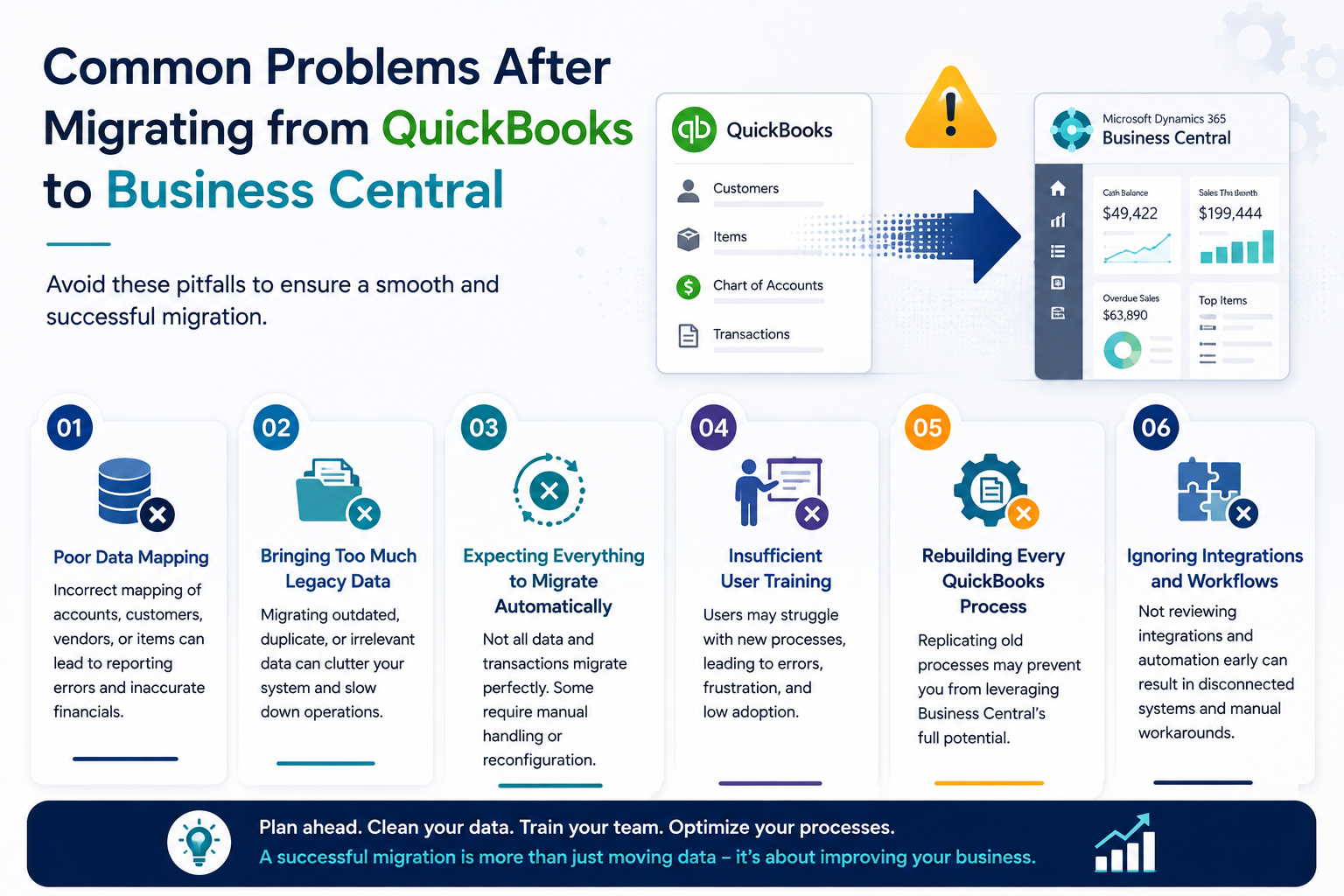
Even a technically successful migration can experience operational problems.
Here are some of the most common.
1. Poor Data Mapping
If QuickBooks accounts, customers, vendors, or items are mapped incorrectly, the problem can spread into reporting and financial processes.
Solution
Create a detailed mapping document before migration and validate representative records after import.
2. Bringing Too Much Legacy Data
More data does not automatically mean better data.
Old, duplicate, or irrelevant records can make Business Central harder to manage.
Solution
Define a clear historical-data strategy before migration.
3. Expecting Everything to Migrate Automatically
Migration tools can significantly simplify the process. However, they do not eliminate planning, mapping, reconciliation, testing, or manual remediation.
Microsoft specifically identifies limitations around certain QuickBooks documents and partially paid transactions.
Solution
Create a migration scope that clearly defines:
- What will migrate
- What will not migrate
- What will be manually recreated
- What will be archived
- What requires custom migration work
4. Insufficient User Training
A technically correct ERP can still fail if employees do not understand how to use it.
Solution
Provide role-based training for:
- Finance teams
- Sales teams
- Purchasing teams
- Warehouse users
- Managers
- Administrators
Training should focus on real business scenarios rather than generic software demonstrations.
5. Rebuilding Every QuickBooks Process
One of the biggest mistakes is trying to reproduce QuickBooks exactly inside Business Central.
Instead, ask:
“What is the best process for our business now?”
This mindset can uncover opportunities for automation and better controls.
A 90-Day QuickBooks to Business Central Checklist
Before Go-Live
- Define migration scope
- Audit QuickBooks data
- Clean duplicate and outdated records
- Map accounts and master data
- Define opening balances
- Determine historical-data requirements
- Configure Business Central
- Test migration
- Validate reports
- Train key users
Days 1–30
- Validate migrated data
- Reconcile financial balances
- Confirm inventory
- Resolve user issues
- Monitor integrations
- Provide additional training
- Review first-month performance
Days 31–60
- Optimize financial workflows
- Improve inventory processes
- Refine reports
- Review approvals
- Identify manual processes
- Improve user adoption
Days 61–90
- Implement priority automations
- Review integrations
- Conduct system health check
- Measure user adoption
- Review reporting quality
- Document ongoing support requirements
- Create a long-term Business Central optimization roadmap
How Sky Soft Connections Can Help With Your Business Central Migration
Migrating from QuickBooks to Business Central is easier when the project is treated as both a technology implementation and business-process transformation.
Sky Soft Connections provides integration and data migration services designed to help businesses connect systems, streamline data flow, and reduce operational complexity. Its services include system integration and data migration, with a focus on creating scalable and secure technology environments.
Sky Soft Connections can support organizations with areas such as:
Business Central Migration Planning
Developing a practical migration roadmap based on your current QuickBooks environment, business processes, data requirements, and future goals.
Data Migration and Mapping
Helping assess, clean, map, transform, and validate business data before it reaches the new ERP environment.
Business Process Optimization
Rather than simply reproducing QuickBooks workflows, the goal is to identify opportunities to simplify and improve business processes within Business Central.
System Integration
Connecting Business Central with other applications so that important information can move between systems without unnecessary manual data entry.
Post-Migration Support
The first 90 days can reveal issues that were not visible during testing. Ongoing support helps address those issues while users become more confident with the new platform.
Read more : Dynamics 365 Business Central for Manufacturing
Frequently Asked Questions About QuickBooks to Business Central Migration
There is no single timeline that works for every company. The duration depends on data volume, business complexity, integrations, customizations, number of users, and migration scope.
However, the first 90 days after go-live can be used as a structured stabilization and optimization period.
Yes. Microsoft provides QuickBooks migration extensions and assisted setup functionality for transferring supported data into Business Central.
However, the exact migration scope depends on the QuickBooks product, data structure, and business requirements.
Yes. Microsoft provides a dedicated QuickBooks Online migration extension as part of the Business Central data migration experience.
There is a learning curve because Business Central provides broader ERP functionality.
However, role-based training and well-designed processes can make adoption significantly easier.
The biggest mistake is treating migration as a simple data-transfer project.
Successful migration requires:
Data + Processes + People + Technology + Support
Ignoring any one of these areas can reduce the value of the new ERP.
The First 90 Days Determine More Than Go-Live
Migrating from QuickBooks to Business Central is a major step for a growing organization.
However, go-live is not the finish line.
It is the beginning of the next phase.
During the first 30 days, focus on stability and data accuracy.
During days 31–60, focus on process improvement and user adoption.
Then, during days 61–90, focus on automation, integration, reporting, and optimization.
Most importantly, do not measure the success of your Business Central migration simply by asking whether the system is running.
Ask whether your business is now:
- Working with cleaner data
- Closing faster
- Reporting more accurately
- Reducing manual work
- Improving operational visibility
- Controlling processes more effectively
- Making better decisions
That is the real measure of a successful QuickBooks to Business Central migration.
With the right migration strategy, data preparation, implementation support, and post-go-live optimization, Business Central can become much more than a replacement for QuickBooks. It can become the foundation for a more connected, scalable, and efficient business.
Thinking about moving from QuickBooks to Business Central? Contact Sky Soft Connections to discuss your migration, data integration, and Business Central implementation requirements.