

Overview
In Microsoft Dynamics 365 / Dataverse projects, there are many real-world scenarios where users need to update existing records based on data received in Excel. In this case, the Excel file contains an Invoice (Quittance) Record ID along with its Payment Date, and the goal is to update the corresponding records in Dynamics 365 CRM using that ID.
This solution uses an HTML Web Resource combined with JavaScript and SheetJS to read the Excel file directly in the browser, match records using the invoice ID, and update the Payment Date field in Dataverse—without using plugins, Power Automate, or any external tools.
In this blog, we will walk through a complete solution that:
- Opens a pop-up modal from a button click
- Allows users to upload an Excel file
- Reads Excel data using SheetJS
- Extracts specific columns:
- Quittance (Invoice) ID
- Payment Date
- Handles multiple date formats safely
- Updates records in Dataverse using Xrm.WebApi
Architecture & Flow
Here’s how the solution works end-to-end:
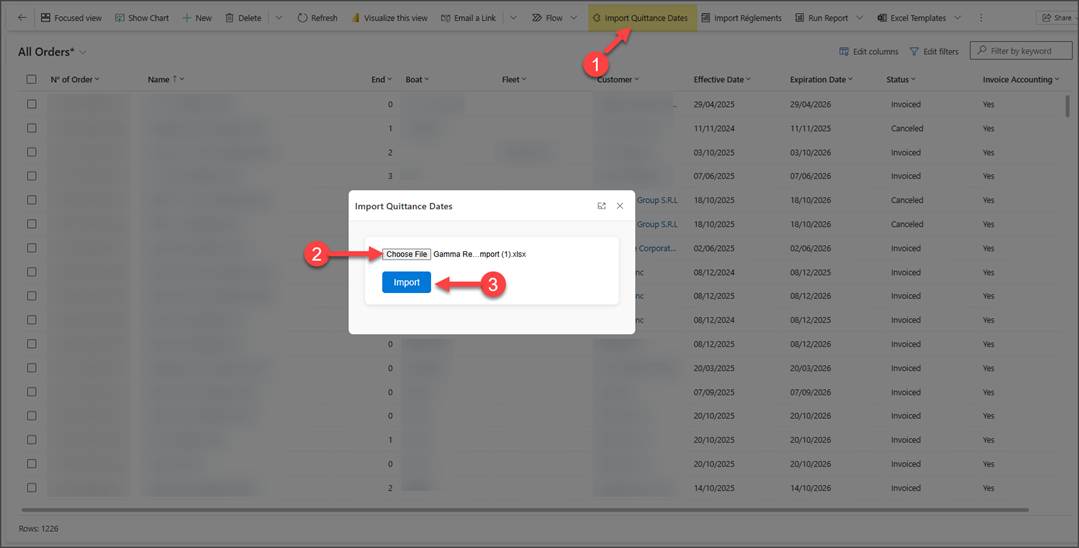
- A button is clicked on a Dynamics 365 form or ribbon.
- An HTML Web Resource opens in a pop-up/modal.
- The pop-up contains:
- A file selector (.xlsx / .xls)
- An Import button
- On clicking Import:
- The Excel file is read in the browser
- Data is extracted from specific columns
- Dates are normalized into a consistent UTC format
- Records are updated in Dataverse using Web API
This approach keeps everything client-side, fast, and easy to maintain.
UI Design (HTML & CSS)
The UI is intentionally simple and user-friendly:
- A clean container layout
- File input for Excel files only
- Import button disabled until a file is selected
This ensures:
- No accidental imports
- Clear user interaction
- Minimal learning curve
Reading the Excel File with SheetJS
We use SheetJS (<script src=”https://cdn.sheetjs.com/xlsx-0.18.5/package/dist/xlsx.full.min.js”></script>) to parse Excel files directly in JavaScript.
const reader = new FileReader();
reader.readAsArrayBuffer(file);
The file is read as an ArrayBuffer, which allows SheetJS to interpret Excel binary data correctly.
Workbook & Worksheet Extraction
const workbook = XLSX.read(new Uint8Array(data), { type: “array” });
const worksheet = workbook.Sheets[workbook.SheetNames[0]];
- The first worksheet is used
- No assumptions about file name or sheet name
Converting Excel Rows to JSON
const rows = XLSX.utils.sheet_to_json(worksheet, {
raw: true,
cellDates: true
});
Why These Options Matter
- raw: true
- Prevents SheetJS from auto-formatting values
- cellDates: true
- Ensures Excel dates may come through as real Date objects
This gives us full control over how dates are processed later.
Column Mapping Strategy
The solution uses two Excel columns:
- Quittance (Invoice) ID
- Payment Date
const date =
rows[i][“Payment Date”] ||
rows[i][“PAYMENT DATE”] ||
null;
Since Excel headers can vary in capitalization, the date column is handled defensively. This prevents import failures due to minor header changes.
Handling Missing Data
Before updating any record, validations are performed:
Missing Quittance (Invoice) ID
if (!quittanceId) {
missingIdCount++;
continue;
}
- Record is skipped
- Import continues
- Count is tracked for final summary
Smart Date Handling Logic
Excel dates are tricky—they can appear in three different forms:
- JavaScript Date object
- Excel serial number
- String date (dd/MM/yyyy or MM/dd/yyyy)
To handle all cases, we use a dedicated function:
Core Date Logic
Case 1: Real JavaScript Date Object
if (value instanceof Date && !isNaN(value)) {
return new Date(
Date.UTC(value.getFullYear(), value.getMonth(), value.getDate())
);
}
✔ Used when Excel cells are true date values
✔ Normalized to UTC to avoid time zone issues in Dataverse
Case 2: Excel Serial Number
Excel often stores dates as numbers (days since 1899-12-30):
if (typeof value === “number”) {
const excelEpoch = new Date(Date.UTC(1899, 11, 30));
return new Date(excelEpoch.getTime() + value * 86400000);
}
✔ Correctly converts Excel numeric dates
✔ Prevents off-by-one and time zone bugs
Case 3: String Date (dd/MM/yyyy or MM/dd/yyyy)
if (typeof value === “string” && value.includes(“/”)) {
const [a, b, y] = value.split(“/”).map(Number);
const day = a > 12 ? a : b;
const month = a > 12 ? b – 1 : a – 1;
return new Date(Date.UTC(y, month, day));
}
Smart Detection Logic
- If the first number is greater than 12, it must be the day
- Otherwise, assume MM/dd/yyyy
✔ Automatically supports:
- 25/01/2025
- 01/25/2025
Updating Dataverse Records
Each valid row updates a record using Xrm.WebApi.updateRecord:
const record = {
new_datedepaiement: date.toISOString(),
};
await Xrm.WebApi.updateRecord(
“new_rsultatfractionnement”,
id,
record
);
Why ISO String?
- Dataverse expects ISO 8601
- Prevents time zone conversion errors
- Fully supported across regions
Progress Indicator & User Feedback
During processing:
- Xrm.Utility.showProgressIndicator() displays:
- Current row
- Total rows
- Date being processed
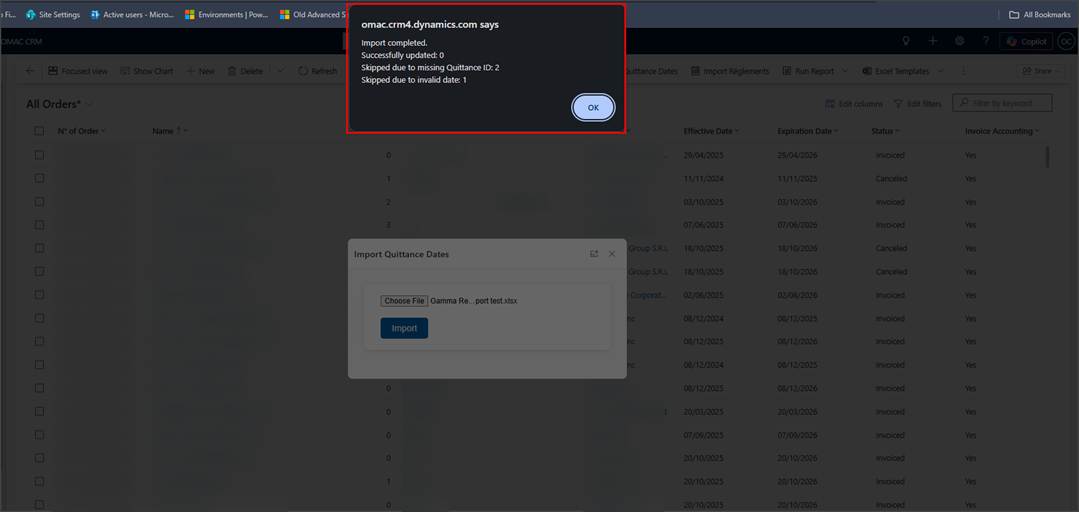
At completion, a summary is shown:
- Successfully updated records
- Skipped records (missing ID)
- Skipped records (invalid date)
Conclusion
This solution demonstrates a simple and effective way to import Excel data into Dynamics 365 using an HTML and JavaScript web resource. By reading Excel files directly in the browser with SheetJS and avoiding hardcoded file or sheet names, the approach remains flexible and user-friendly. Robust date-handling logic ensures consistent and UTC-safe values for Dataverse, even when Excel formats vary. Overall, this pattern offers a lightweight, maintainable alternative for reliable bulk updates without server-side complexity.
Read more : power bi vs excel upgrade your reporting today
FAQ’s
No. The entire import runs client-side using HTML, JavaScript, and Xrm.WebApi.
Yes. It safely processes Date objects, Excel serial numbers, and common string formats.
It’s suitable for moderate-sized files and performs updates efficiently in the browser.
Yes. Updates use Xrm.WebApi and respect Dynamics 365 security roles and permissions.