
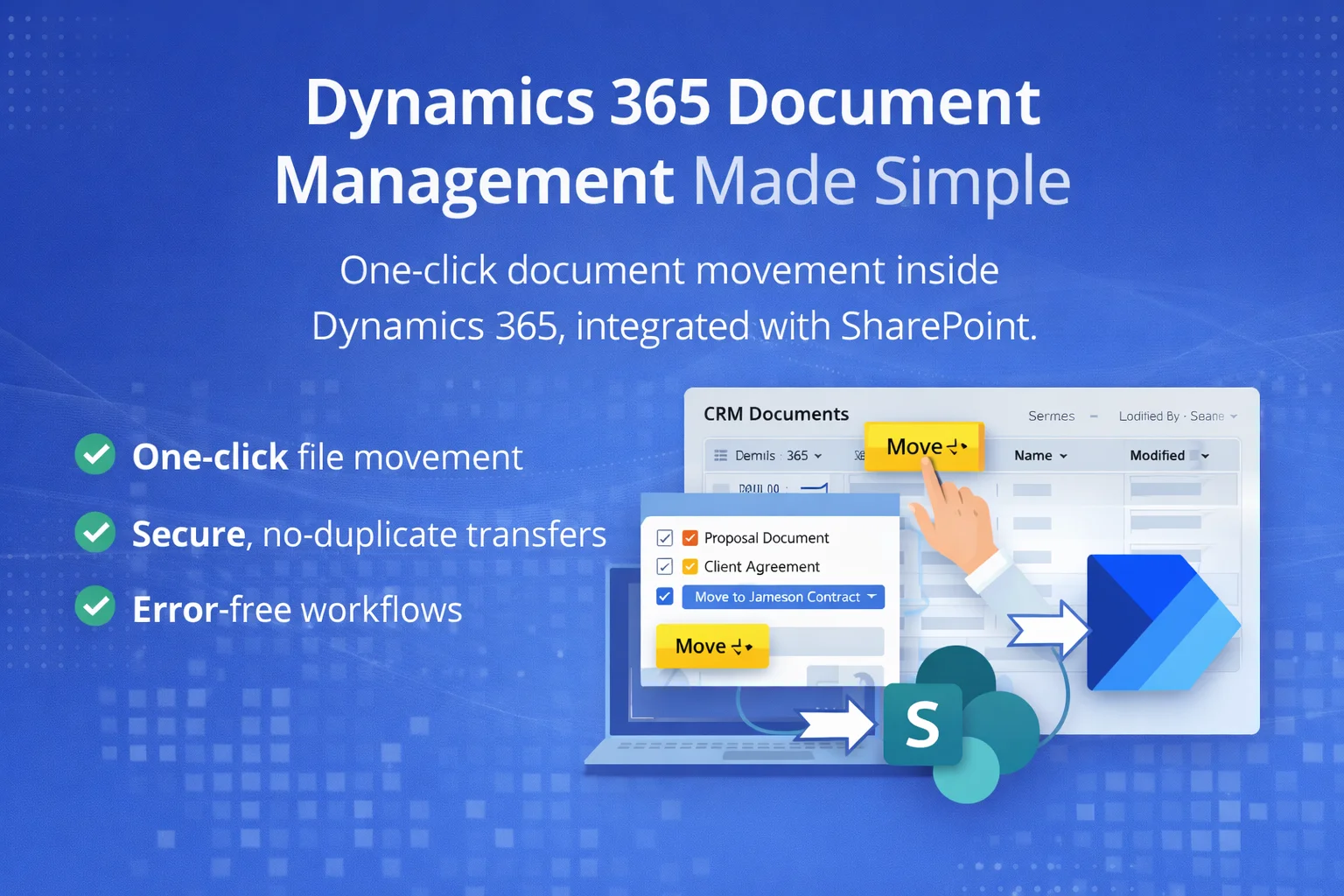
Managing documents inside Dynamics 365 can quickly become inefficient when users need to move files between related records frequently. In many systems, this process still involves manual downloads, re-uploads, and navigation across SharePoint folders, increasing the risk of errors and wasted time.
At SkySoft, we implemented a streamlined solution that allows users to move CRM documents between records with a single click, while preserving SharePoint structure and security.
The Business Challenge
Users often need to reorganize documents when:
- Update or correct records.
- Attach files to the correct CRM record.
- Reassign documents without creating duplicates.
Without native support for this workflow, teams often rely on manual document handling, which is time-consuming and error-prone.
The Solution Overview
We designed a simple, user-friendly document move experience directly inside Dynamics 365 using a combination of platform capabilities.
Key Highlights
- One-click document movement
- No manual download or upload
- Fully handled through CRM UI
- Secure SharePoint file operations
Below is a high-level view of how this functionality works, focusing on user experience rather than internal implementation details.
How the Solution Works
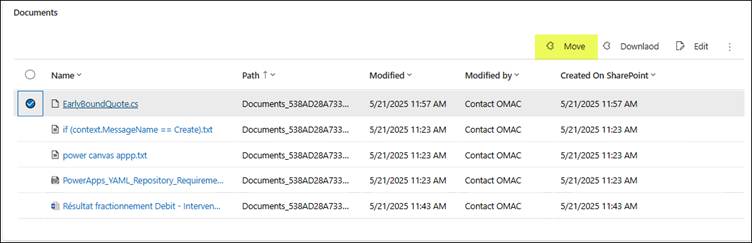
Custom “Move” Button in CRM
A custom Move button was added to the CRM Document subgrid.
This allows users to initiate the document transfer directly from the record they are working on.
Screenshot: Move button in CRM Document subgrid
Client-Side Logic & Popup Interaction
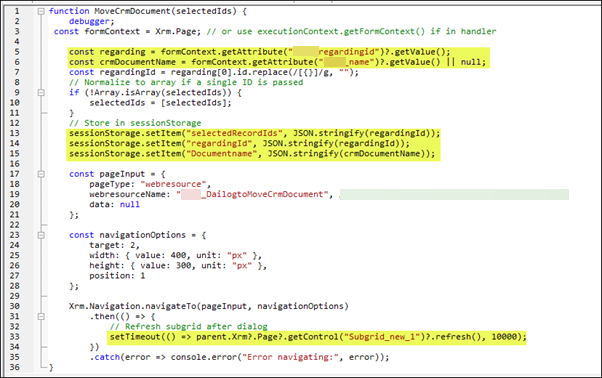
When the button is clicked:
- JavaScript retrieves the required context (related record, document name, and selected files)
- Information is stored temporarily for processing
- A lightweight HTML popup opens to guide the user
- The document subgrid refreshes automatically after completion
Screenshot: Document selection popup
Smart Document Selection
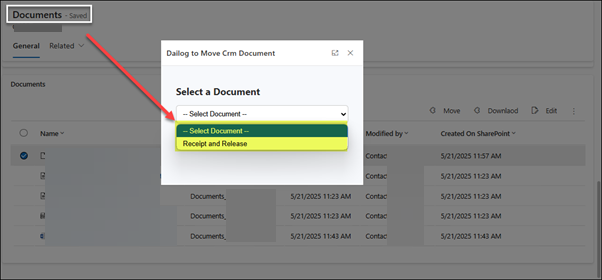
On popup load:
- All CRM documents related to the same parent record are retrieved
- The currently open document is excluded
- A dropdown allows the user to select the destination document
This ensures users cannot accidentally move files to the same location.
Screenshot: Destination document dropdown
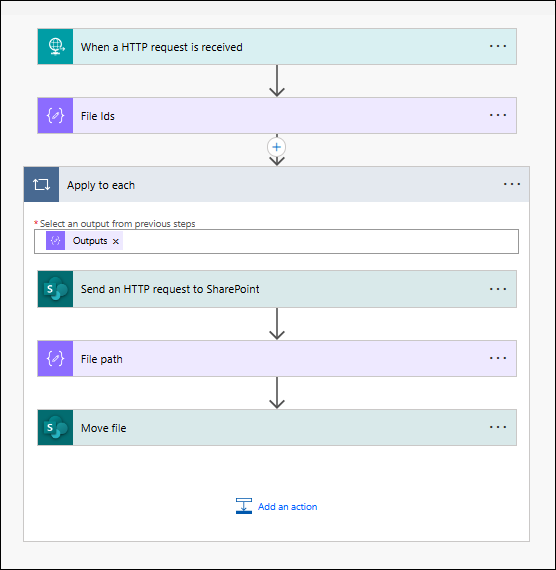
Automated File Movement via Power Automate
Once the user confirms:
- A Power Automate flow is triggered
- File content is retrieved directly from SharePoint using secure HTTP requests
- File paths are dynamically adjusted to support movement between CRM documents
- Files are moved using native SharePoint actions—without duplication
Screenshot: Power Automate flow handling file movement
The Result
- Files are moved instantly between CRM documents
- SharePoint folder structure remains intact
- No duplicate files are created
- Users save time and avoid manual errors
- Document management becomes intuitive and reliable
Why This Matters
This solution demonstrates how Dynamics 365, SharePoint, JavaScript, and Power Automate can work together to solve real operational challenges.
By focusing on user experience and automation, we helped reduce friction in day-to-day CRM usage—without introducing unnecessary complexity.
Conclusion
Small workflow improvements can have a big impact on daily operations.
By simplifying document movement within Dynamics 365, we enabled users to work faster, reduce errors, and stay focused on what matters—without changing their existing workflows.
This is a great example of how thoughtful automation can quietly improve productivity across an organization—without disrupting existing workflows.
At SkySoft, we build solutions that improve both system architecture and daily productivity.
Read more : import excel data into dynamics 365 using JavaScript
FAQ’s
No, the system moves files securely within SharePoint without creating duplicates.
Yes, the system handles the entire process directly within the Dynamics 365 interface.
Yes, all existing SharePoint permissions and folder structures remain intact.
Documents move automatically with a single click—no manual handling required.