
Project Overview:
Build a compact internal HR knowledge assistant grounded on a SharePoint document library, with role-based security, intelligent fallback handling, and email escalation published to Microsoft Teams for all employees of Sky Soft Connections.
Project Overview & Objectives
This document provides complete technical documentation for the Copilot Studio Internal Knowledge Assistant built for SkySoft Connections. The agent serves as an AI-powered HR support tool that allows employees to query company HR policies, benefits, and procedures directly within Microsoft Teams.
1.1 Objectives
- Provide employees with instant, accurate answers from approved HR documents.
- Restrict document access based on departmental security groups (Finance, Marketing, General).
- Handle edge cases gracefully: greetings, off-topic queries, restricted content, and missing information.
- Escalate unanswered queries to the HR team via automated email.
- Deploy the agent to Microsoft Teams for organization-wide access.
2. System Architecture
2.1 Component Overview
| Component | Technology | Role |
| Conversational AI | Microsoft Copilot Studio | Hosts the agent, topics, and logic flows |
| Knowledge Base | SharePoint Online (Document Library) | Stores HR, Finance & Marketing documents |
| Security | Microsoft 365 Security Groups | Controls document access per department |
| Channel | Microsoft Teams + Copilot 365 | User-facing interface for all employees |
| Email Escalation | Power Automate | Sends unanswered queries to HR mailbox |
| Query Classifier | GROQ API (LLM) | Detects irrelevant / off-topic queries |
| Identity | Azure Active Directory (AAD) | Authenticates users and enforces permissions |
2.2 Technology Stack
- Microsoft Copilot Studio : No-code / low-code conversational AI platform for building and deploying agents.
- SharePoint Online : Document repository for all HR, Finance, and Marketing policy files.
- Microsoft Teams : Primary deployment channel for employee interactions.
- Microsoft 365 Security Groups : Enforces document-level access control in SharePoint.
- Power Automate : Handles email action when a query cannot be answered by the knowledge base.
- GROQ API : Fast LLM inference used to classify whether a user message is HR-relevant or off-topic.
- Azure Active Directory : Identity provider ensuring the agent inherits the user’s SharePoint permissions.
3. Prerequisites & Licensing
| Requirement | Details |
| Copilot Studio License | Developer must hold an active Microsoft Copilot Studio license (standalone or bundled with M365). |
| Microsoft 365 License | End users require an M365 license that includes Teams access. A Copilot Studio license is not required for consumers of the agent. |
| SharePoint Admin Access | Developer requires SharePoint Site Owner or Admin permissions to create libraries, stop inheritance, and assign security groups. |
| Power Automate Access | Required for the email escalation flow (included in most M365 plans). |
| AAD / Entra ID | An Azure Active Directory administrator must create the security groups used for document access control. |
| GROQ API Key | A free or paid GROQ API key (console.groq.com) is required for off-topic query detection. Store securely in Azure Key Vault or as an environment variable in Power Automate. |
| Teams Admin | May be required to approve the agent for organization-wide availability if tenant policies restrict app installations. |
4. SharePoint Knowledge Base Setup
4.2. Document Library Structure
Three dedicated folders were created inside the SharePoint document library. Each folder is secured independently using unique permission assignments.
| Folder Name | Target Users | Content | Security Group |
| Agent – HR Support Assistant Docs | All Employees | WFH policy, leave policy, medical benefits, employee perks, general HR procedures | Everyone Except External Users |
| Agent – Finance Support Docs | Finance Team Only | Budget approval matrix, expense policies, financial procedures, payment terms | Agent – Director |
| Agent – Marketing Team | Marketing Team Only | Campaign approval workflow, brand guidelines, marketing SOPs, media plans | Agent – Marketing |
4.2 Security Groups
- Everyone Except External Users : Built-in M365 group covering all internal employees. Grants access to general HR documents.
- Agent – Director : Custom group for Finance team members and directors. Grants access to Finance support documents.
- Agent – Marketing : Custom group for Marketing team members. Grants access to Marketing team documents.
4.3 Folder Permission Assignment
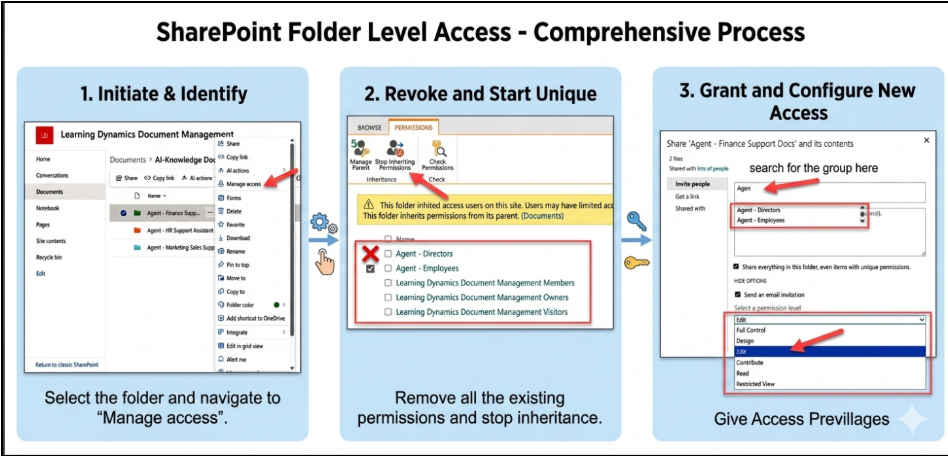
For each folder, apply the following steps in SharePoint:
- Navigate to the document library and open the target folder.
- Go to Manage Access → Advanced Settings → Stop Inheriting Permissions. Confirm the dialog to break the inheritance chain.
- Remove any inherited permission entries that should not apply to this folder.
- Click Grant Permissions, search for the target security group, assign Read permission level, and click Share.
- Repeat for all three folders, assigning the correct security group to each.
Note: The Copilot agent inherits the SharePoint permissions of the logged-in user.SharePoint automatically enforces security at the document library layer, so the agent logic does not require additional filtering.
Copilot Studio Agent Build Steps
5.1 Create the Agent
- Navigate to copilotstudio.microsoft.com and sign in with your licensed Microsoft 365 account.
- Click + New agent. Provide a name (e.g., HR Support Assistant), a short description, and select the appropriate environment.
- Select English (or your organization’s preferred language) as the primary language.
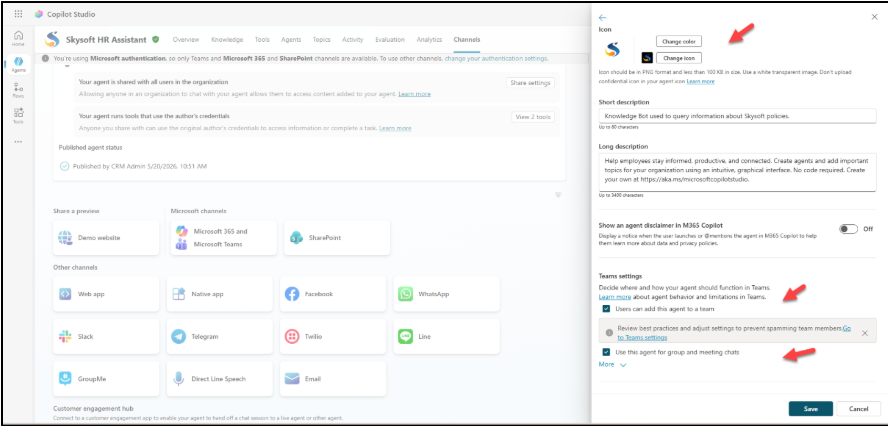
- Click Edit details to set the agent icon, display name, and description that employees will see in Teams.
5.2 Connect SharePoint Knowledge Base
- In the agent editor, navigate to the Knowledge section from the left panel.
- Click + Add knowledge → select SharePoint from the list of knowledge source types.
- Enter the URL of your SharePoint site or the specific document library. Copilot Studio will index the connected documents.
- Allow time for indexing status will show as Ready when complete.
- Verify that the agent is configured to use the end-user’s credentials (not a service account) so SharePoint security groups are respected during queries.
5.3 Custom Topic Configuration
A single Custom Topic HR Query Handler was created to handle all user queries. It acts as the main conversation flow, intercepting all incoming messages and routing them through query classification and knowledge base search logic.
- Trigger: All incoming messages (topic set as primary handler)
- Flow: Message received → GROQ classification → AI Generative Answer → Condition check → Response or escalation
5.4 AI Generative Answer Node
The AI Generative Answer node is the core component that searches the SharePoint knowledge base and generates a response. Configuration:
- Knowledge source: The SharePoint document library connected in step 5.2.
- Strict mode enabled: The node returns an empty/null response if no relevant information is found — it never guesses or uses general AI knowledge.
- Output variable: The generated answer is stored in varGeneratedResponse for use in the subsequent condition node.
- User context: The node executes under the logged-in user’s identity, automatically enforcing SharePoint folder permissions.
5.5 AI Instruction Prompt
The system passes the provided requirement-based instruction to the AI Generative Answer node to control its behavior strictly. This prompt ensures the agent never fabricates information and always responds in a consistent, professional format.
5.6 Condition Logic Blank Response Check
After the AI Generative Answer node executes, the Condition node checks whether the system returned a meaningful response.
| Condition | Result | Action Taken |
| varGeneratedResponse is NOT blank | KB answer found (user has access) | Display the generated response to the user. |
| varGeneratedResponse IS blank | No info found OR document is restricted | Ask: “I am unable to find this information. Would you like to send an email to HR? Please confirm by entering Yes or No.” |
Design Note: A blank response occurs in two situations: (a) the user has KB access but no relevant document exists, or (b) the document exists but the user lacks SharePoint read permission. Both cases trigger the same fallback intentionally avoiding disclosure of which documents exist.
5.7 HR Chat Escalation Process
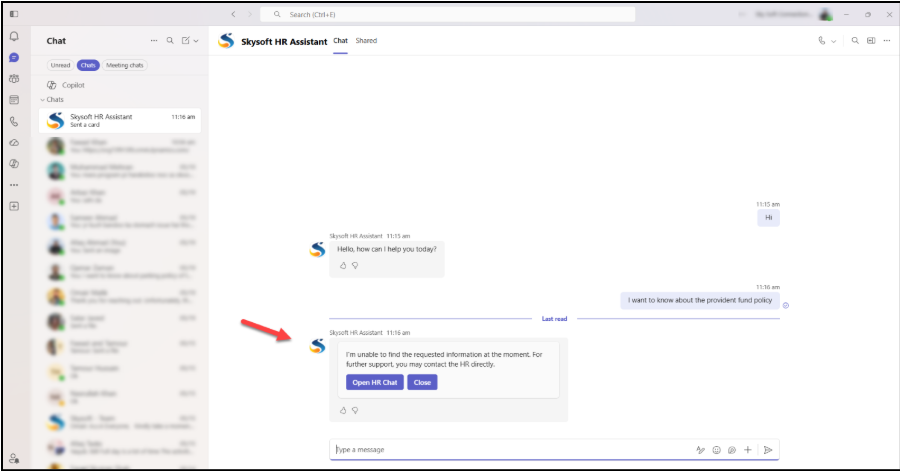
When a user’s query cannot be resolved using the available knowledge sources, the system automatically escalates the interaction to facilitate direct human support.
Upon detecting an unanswered relevant query, the copilot displays an Adaptive Card within the chat interface presenting the user with two options:
- Open HR Chat: Clicking this button redirects the user directly to the HR chat channel in Microsoft Teams, enabling real-time assistance from an HR representative.
- Close: Clicking this button displays the following message to the user: “Thank you for using the Skysoft HR Assistant. Please try again with a different query or rephrase your request for better results.”
5.8 GROQ API : Irrelevant Query Detection
Before the query reaches the AI Generative Answer node, a GROQ API call classifies whether the user’s message is HR-related or off-topic. This prevents unnecessary KB searches.
| Step | Detail |
| API Endpoint | https://api.groq.com/openai/v1/chat/completions |
| Model Used | llama3-8b-8192 |
| Classification Prompt | Classify the following user message as either “HR” or “GENERAL”. Reply with only one word: HR or GENERAL. |
| If GROQ returns GENERAL | Skip KB search. Display off-topic fallback: “I can only assist with queries related to SkySoft Connections HR policies and internal procedures.” |
| If GROQ returns HR | Proceed to AI Generative Answer node to search SharePoint KB. |
6. Response Scenarios & Fallback Logic
The agent handles five distinct query scenarios. Each has a dedicated response path.
| Scenario | Trigger / Condition | Bot Response | Handled By |
| Greeting | User sends: Hi, Hello, Good Morning, etc. | Welcome message + list of supported query types | AI instruction prompt |
| HR Query Found | HR-related query; document found; user has access | Formatted answer with heading, bold values + closing prompt | AI Generative Answer node |
| HR Query Not Found | HR-related query; no relevant document exists in KB | Unable to find → email escalation prompt | Blank response condition |
| Restricted Document | HR-related query; document exists; user lacks SharePoint access | Same as Not Found — blank response triggers email prompt | SharePoint security + blank condition |
| Irrelevant Query | GROQ classifies message as GENERAL | Off-topic fallback (no email prompt triggered) | GROQ API classifier |
7.Deployment to Microsoft Teams
7.1 Publish the Agent
- In Copilot Studio, click the Publish button in the top-right corner of the agent editor.
- Review any validation warnings, then click Publish to make the latest version live.
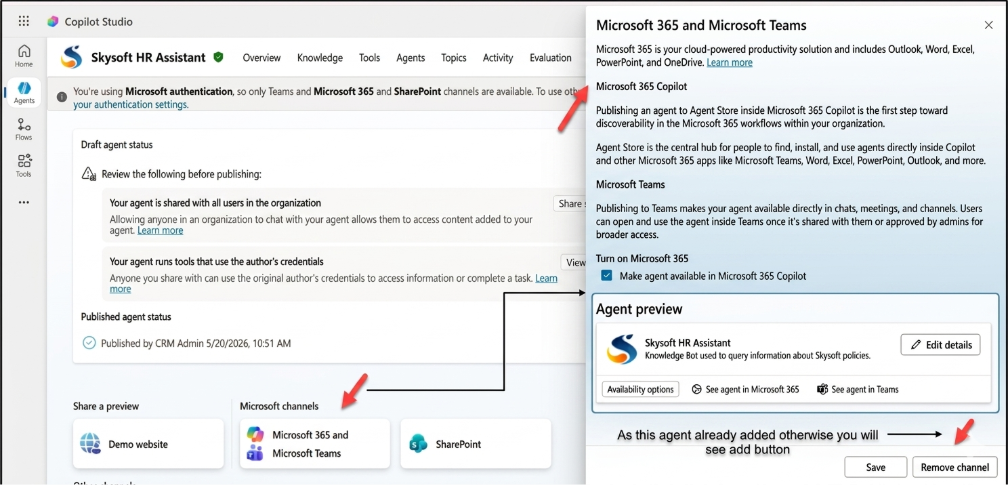
7.2 Add Teams & Copilot 365 Channels
- In the agent editor left sidebar, click Channels.
- Select Microsoft Teams and follow the prompts to configure the Teams app manifest.
- Return to Channels and also select Microsoft Copilot 365 to make the agent available in the M365 Copilot interface.
- For each channel, click Add or Enable. Copilot Studio now registers the agent as a Microsoft Teams application.
7.3 Availability Settings
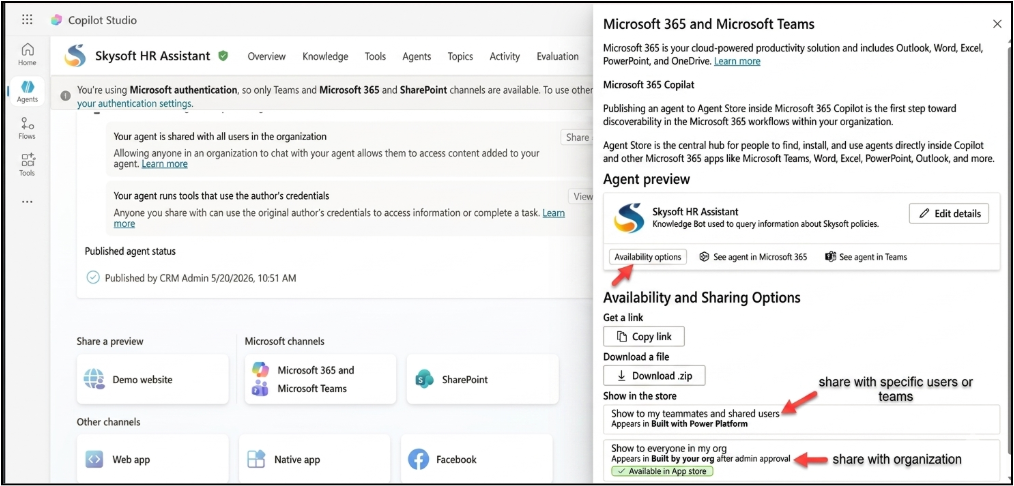
- In Channels settings for Microsoft Teams, click the Availability tab.
- Select scope: All members in the organization (visible to every Teams user) or Specific users or groups (restricts visibility to named users or Azure AD groups).
- Click Save. Changes may take a few minutes to propagate.
7.4 Agent Settings & Branding
| Setting | Value |
| Display Name | HR Support Assistant |
| Short Description | Get instant answers to HR policy questions, leave information, and employee benefits. |
| Long Description | Helps SkySoft Connections employees find information about HR policies, leave, medical benefits, and company procedures directly in Microsoft Teams. |
| Icon | 192×192 px PNG (company logo or HR badge) |
| Accent Color | Match company brand color (hex value) |
| Developer Name | SkySoft Connections IT / Development Team |
7.5 Submit to Org Catalog & Admin Approval
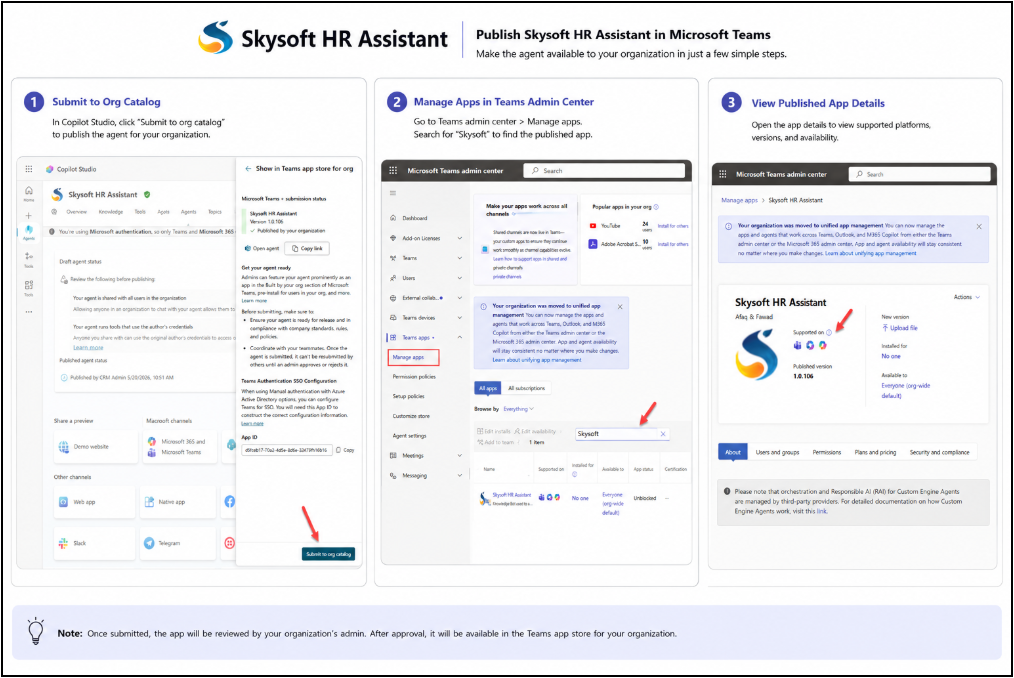
- Go to Availability settings → click Show to everyone in my Org and submit.
- After submission, the status will show as Pending Request.
- In Teams Admin Center → Manage Apps → search for the agent → Publish. It may take a few hours to appear.
- Once approved, employees can find the agent under Teams Apps in the left sidebar.
8. Security Architecture
SharePoint enforces security at the document library layer instead of the Copilot agent itself. The agent uses the authenticated user’s identity and retrieves only the documents that the user has permission to access. This leverages Microsoft’s native access control infrastructure.
8.1 Security Group Design
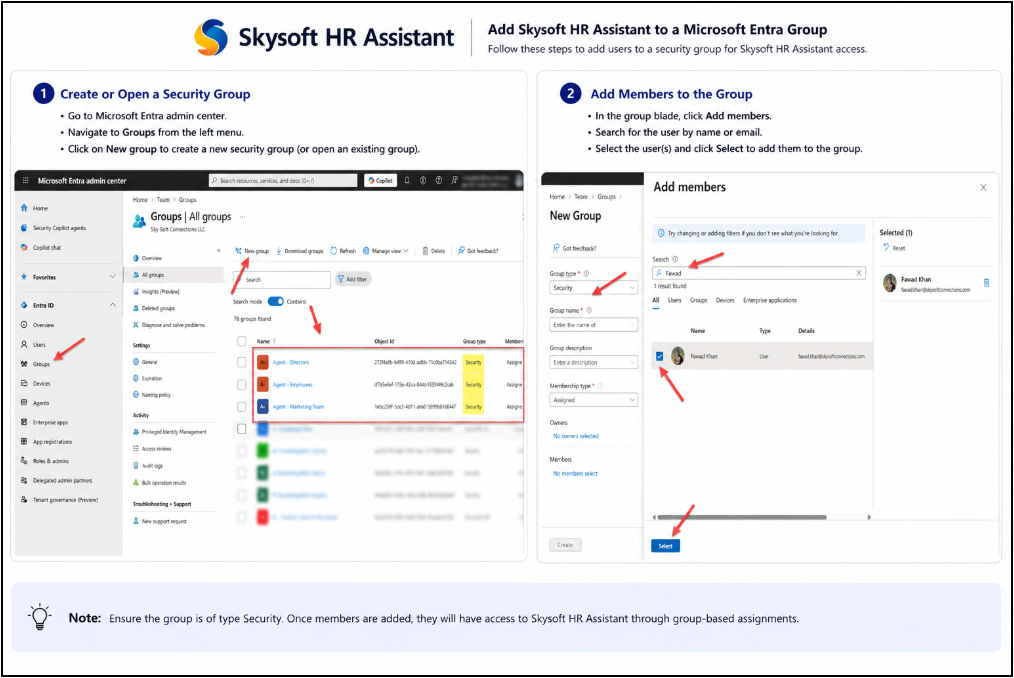
| Security Group | Members | Accessible Folders | Use Case |
| Everyone Except External Users | All internal employees (automatic) | Agent – HR Support Assistant Docs | General HR queries for the whole organization |
| Agent – Marketing | Marketing team members | Agent – Marketing Team | Marketing SOPs and campaign approvals — restricted to marketing staff |
| Agent – Director | Finance team members and directors | Agent – Finance Support Docs | Financial policies and budget documents — restricted to authorized finance roles |
8.2 Permission Matrix by User Type
| User Type | HR Support Docs | Finance Docs | Marketing Docs | Agent Behaviour |
| General Employee | ✓ Access | ✗ No Access | ✗ No Access | Answers HR queries; fallback + email prompt for Finance/Marketing |
| Marketing Team Member | ✓ Access | ✗ No Access | ✓ Access | Answers HR & Marketing queries; fallback + email prompt for Finance |
| Finance / Director | ✓ Access | ✓ Access | ✓ Access | Answers HR & Finance queries; fallback + email prompt for Marketing |
Security Design Principle: The agent never reveals whether users lack access to a document or whether the document does not exist. Both scenarios produce an identical ‘unable to find information’ response, preventing information leakage about confidential documents.
9. Demo
9.1 General HR Query : WFH Policy
| Demo 9.1: General HR Query WFH Policy | |
| User account | user 1 (General Employee + Marketing Group member) |
| User query | “I want to know about WFH policy” |
| Expected document source | Agent – HR Support Assistant Docs (accessible to all employees) |
| Expected response | Formatted policy answer from the WFH policy document |
| Security group check | Everyone Except External Users (user 1) is included |
9.2 Marketing Query Campaign Approval Workflow
| Demo 9.2: Marketing Query Campaign Approval Workflow | |
| User account | User 2 (member of Agent – Marketing security group) |
| User query | “What is Campaign Approval Workflow?” |
| Expected document source | Agent – Marketing Team (accessible to Marketing group members) |
| Expected response | Formatted answer from the Marketing Support documentation |
| Security group check | Agent – Marketing user 2 has read access |
9.3 Finance Query Budget Approval Matrix (Restricted)
| Demo 9.3: Finance Query Budget Approval Matrix (Restricted) | |
| User account | User 1 (NOT a member of Agent – Director / Finance group) |
| User query | “What is the amount of Budget Approval Matrix?” |
| Expected document source | Agent – Finance Support Docs (RESTRICTED user 3 has no access) |
| Expected response | Fallback: “I am unable to find this information. Would you like to send an email to HR?” |
| If user types Yes | Power Automate triggers email to HR mailbox with the original query |
| Security enforcement | SharePoint returns no results AI Generative Answer returns blank Condition routes to fallback |
9.4 Irrelevant Query Weather
| Demo 9.4: Irrelevant Query Weather | |
| User account | User 4 |
| User query | “What is the Weather condition outside today?” |
| GROQ classification result | GENERAL (not HR-related) |
| KB search triggered | No query is rejected before reaching the AI Generative Answer node |
| Expected response | Off-topic fallback message citing SkySoft Connections scope |
9.5 Testing Checklist
Use the following checklist to validate the agent before releasing it to all employees.
| Test Case | Test Input | Expected Result |
| Greeting handling | “Hello” | Welcome message with HR topics listed |
| Greeting Urdu | “Assalamualaikum” | Professional welcome response |
| Valid HR query | “What is the WFH policy?” | Formatted policy answer + closing prompt |
| Valid Marketing query (Marketing user) | “What is Campaign Approval Workflow?” | Marketing doc answer returned |
| Finance query (non-Finance user) | “What is Budget Approval Matrix?” | Cannot find information + email prompt |
| Finance query (Finance user) | “What is Budget Approval Matrix?” | Correct financial answer returned |
| Off-topic query | “What is the weather today?” | Off-topic fallback (no email prompt) |
| Email escalation confirm | Type ‘Yes’ after ‘cannot find’ | Email sent confirmation message |
| Email escalation cancel | Type ‘No’ after ‘cannot find’ | Cancellation message + restart |
| HR receives email | Check HR mailbox after Yes confirmation | Email arrives with user query content |
| Security general user cannot see Finance | General employee asks Finance question | Fallback (no Finance data returned) |
| Agent visible in Teams | Open Teams, search HR Support Assistant | Agent found in Apps/Search |
Read more :
FAQ’s
It is an AI-powered internal assistant that helps employees access HR policies, procedures, and company information directly in Microsoft Teams.
The assistant uses SharePoint permissions and Microsoft 365 security groups to ensure users only access authorized documents.
Yes, the system uses GROQ AI classification to detect irrelevant queries and respond appropriately without searching the knowledge base.
The system automatically offers an escalation option, allowing employees to contact the HR team directly through Microsoft Teams or email.