
Introduction
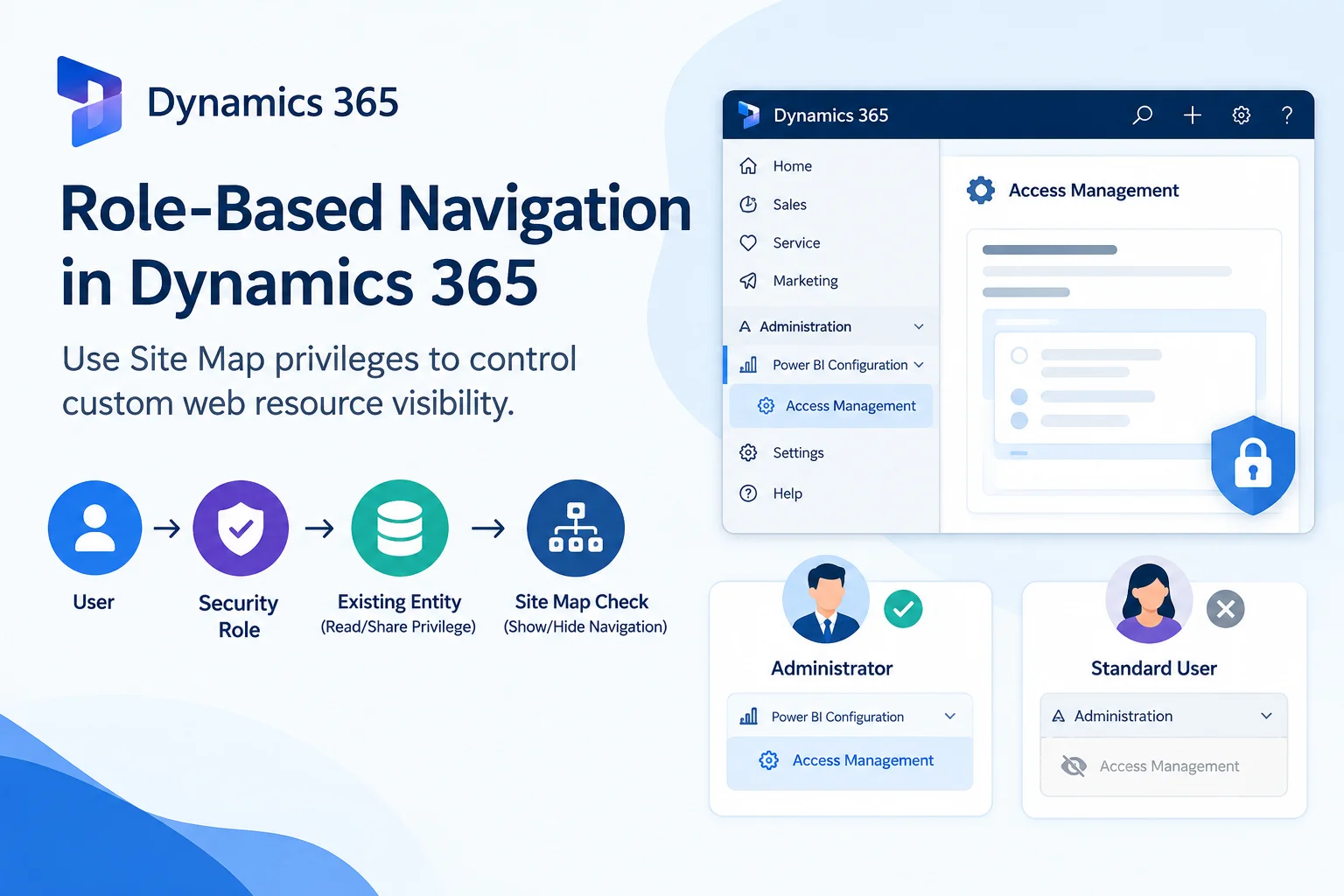
In Dynamics 365 Customer Engagement (CRM/CE), the Site Map controls the navigation users see in a model-driven app.
A common requirement is to show a custom administration page only to specific users, such as CRM administrators.
This becomes slightly different when the navigation item opens an HTML web resource instead of a Dataverse table.
In our implementation, we needed to:
- Add a custom HTML web resource to the Dynamics 365 navigation.
- Make the navigation available only to administrators.
- Hide the navigation item from other users.
- Avoid creating a separate custom entity just to control navigation access.
The solution was to use an existing Dataverse entity’s Read privilege/ or any other Privilege as the security check for the Site Map navigation item.
Part 1 : dynamics 365 sitemap privileges control visibility
The Requirement
We had a custom HTML web resource that needed to be available from the application’s navigation.
The expected behavior was simple:
| User | Navigation |
| Administrator | Visible |
| Other users | Hidden |
The navigation target itself was a web resource, so we could not simply use the web resource as an entity-based security reference.
Instead, we used an existing Dataverse entity for the privilege check.
The basic flow
User → Security Role → Existing Entity Read Privilege → Site Map Check → Show/Hide Navigation
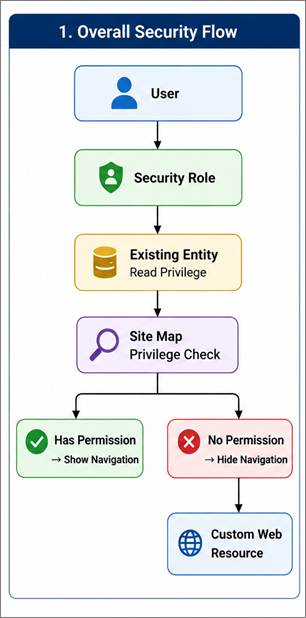
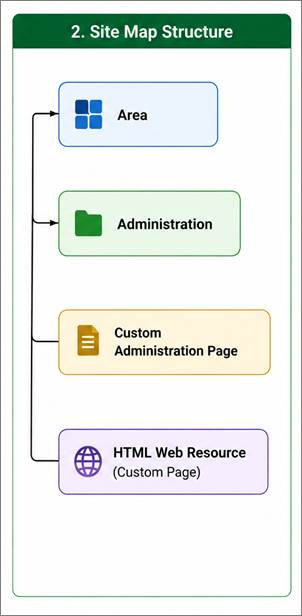
Figure 1. Role-based navigation flows using an existing entity’s Read privilege.
How the Solution Works
The important concept is that the existing entity is not the navigation destination.
It is only used by the Site Map to determine whether the user has the required privilege.
The navigation itself still opens the custom HTML web resource.
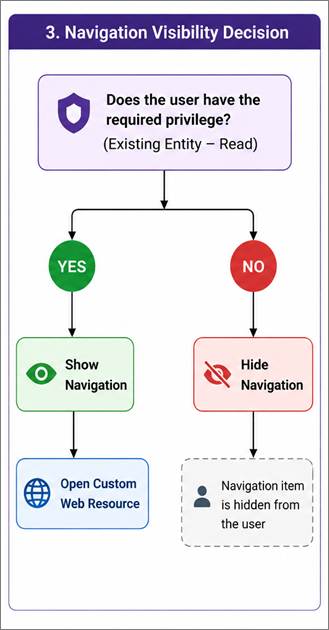
This allows us to use the existing Dynamics 365 security model without adding a new navigation-control entity.
Step 1: Create the HTML Web Resource
First, create the required HTML web resource in your Dynamics 365 solution.
For example:
ssc_accessManagement.html
The web resource can contain your custom administration functionality.
Figure 2. HTML web resource created in the Dynamics 365 solution.
Step 2: Add the Web Resource to the Site Map
Open your model-driven app in Power Apps and edit the application.
Go to the Site Map and create the required navigation structure.
For example:
Area
└── Power BI Configuration
└── Access Management (Custom page)
Configure the subarea to open the HTML web resource.
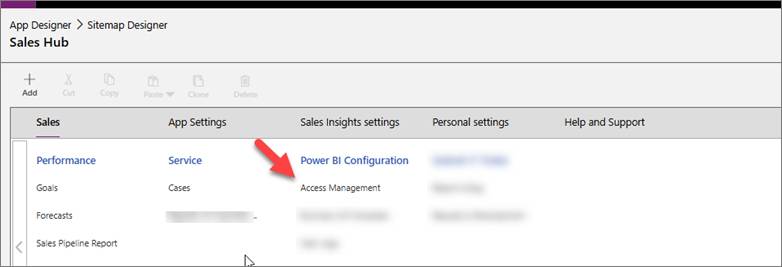
Figure 3. Adding the custom web resource to the Site Map.
The important part here is that the navigation item points to the web resource, not to the entity that will be used for the security check.
Step 3: Configure the Privilege
Now select the web resource subarea in the Site Map designer.
Open its advanced properties and configure the Privileges.
Instead of using the web resource as the security reference, select an existing Dataverse entity.
Configure the required privilege, for example:
Entity: Existing Entity (User Logs)
Privilege: Read/Share
Why Share?
In our scenario, users already had the required access to the existing User Logs entity, including Read access.
However, the Share privilege was restricted to the required administrative users.
Therefore, Share provided a useful permission that could distinguish administrators from standard users.
The important distinction is:
The Site Map is checking the user’s Share privilege on the User Logs entity. It is not checking whether a particular User Logs record has been shared with that user.
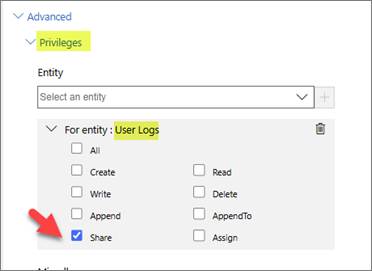
Figure 4. Configuring the existing entity and Read privilege for the Site Map navigation.
Dynamics 365 will use this privilege to determine whether the navigation item should be displayed.
Step 4: Configure Security Roles
The next step is to make sure the required security role has the selected privilege.
In our case, the existing entity’s Read privilege was available to administrators.
Users without this privilege would not see the navigation item.
| Security Role | Existing Entity – Read | Navigation |
| System Administrator | Yes | Visible |
| Standard User | No | Hidden |
| Other Roles | No | Hidden |
This is where the role-based behavior is actually controlled. We are not hard-coding security role names or IDs in JavaScript. The Site Map uses the user’s existing Dataverse privileges.
Step 5: Publish and Test
After completing the configuration:
- Save the Site Map.
- Save the model-driven app.
- Publish the changes.
- Refresh the application.
- Test with users having different security roles.
Administrator
A user with the required Read privilege should see:
Power BI Configuration
Access Management (Custom page)
Selecting the navigation item opens the HTML web resource.
Standard User
A user without the required privilege should not see the navigation item.
Administration
Custom Administration Page
[Hidden]
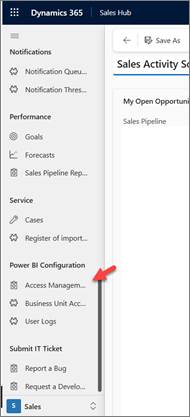
Figure 6. Navigation visible to a user with the required privilege.
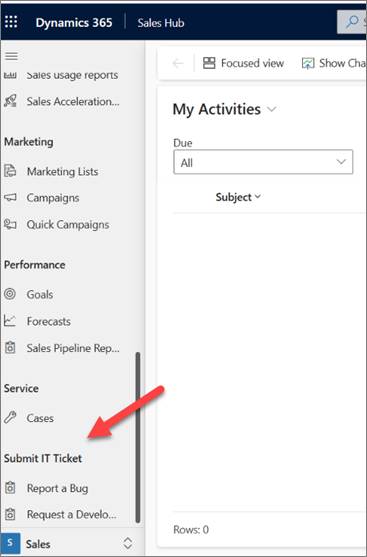
Figure 7. Navigation hidden from a user without the required privilege.
Why Use an Existing Entity?
A common solution is to create a separate custom entity specifically for controlling Site Map visibility.
For example:
Navigation Access
↓
Share / Read Privilege
↓
Show/Hide Navigation
While this approach works, it introduces another Dataverse component that needs to be maintained.
For our requirement, an existing entity already had the appropriate security configuration, so we reused it.
Benefits
- No additional entity
There is no need to create a custom entity only for navigation control.
- Uses existing security
The navigation follows the existing Dataverse security role configuration.
- Less customization
There is no JavaScript required to check security roles.
- Easier maintenance
Administrators can manage access through the existing security role privileges.
Important Security Consideration
It is important to understand that hiding a navigation item is not the same as securing the underlying functionality.
The Site Map controls what users see in the navigation.
The actual Dataverse data and operations should still be protected using appropriate security roles, privileges, APIs, custom actions, or other authorization mechanisms.
Think of it as two layers:
Site Map Privilege
↓
Controls Navigation Visibility
↓
Dataverse / Application Security
↓
Controls Actual Access
Therefore, sensitive functionality should never rely only on the navigation item being hidden.
Advantages of This Approach
This implementation provides a simple and maintainable way to control access to custom web resource navigation.
Key benefits
- Role-based navigation
- No hard-coded security role IDs
- No JavaScript role checking
- No additional navigation-control entity
- Uses existing Dataverse security
- Cleaner user experience
- Easy to maintain
Final Takeaway
When a custom HTML web resource/Dataverse entity needs to be available only to specific users, the Dynamics 365 Site Map can use an entity privilege as the visibility condition.
In our implementation, we reused an existing entity’s Share privilege instead of creating a new entity purely for navigation security.
The implementation can be summarized in five steps:
- Create the HTML web resource.
- Add it to the Site Map.
- Configure an existing entity’s Share privilege as the Site Map privilege.
- Give that privilege to the required security role.
- Publish and test with different users.
The result is a clean role-based navigation experience where administrators can access the custom web resource, while users without the required privilege do not see the navigation item.
Read more : Is Dynamics 365 Worth It? An ROI Framework for Mid-Market and Enterprise Leaders
FAQ’s
Yes. You can use an existing Dataverse entity privilege in the Site Map to control whether the web resource navigation item is visible.
No. You can reuse an existing entity and its privileges, avoiding an additional custom entity.
No. Site Map visibility only controls navigation. The underlying functionality and data must still be secured separately.
Yes. Depending on your requirement, you can use an appropriate privilege, such as Read, Share, or another available privilege, to distinguish users through their security roles.