

In many Dynamics 365 / Dataverse projects, users store documents in SharePoint document locations and later need a simple, user-friendly way to download one or multiple files directly from the CRM UI.
Out of the box, Dynamics does not provide an elegant solution to: – Select multiple records – Click a custom button – Download the related SharePoint files in one go
This blog explains a real-world production-ready solution using:
- A custom ribbon button/command bar button
- JavaScript (Web Resource)
- A Custom Action + Plugin
- Microsoft Graph API to fetch files from SharePoint
High-Level Architecture

Business Requirement
- User selects one or multiple records (files)
- Clicks Download Files button
- System downloads files stored in SharePoint
- No Power Automate
- No external tools
- Works directly inside the browser
Step 1: Custom Button (Command Bar)
A custom button is added to the grid or subgrid using: – Ribbon Workbench or – Modern Command Designer
The button passes the selected record IDs to JavaScript.
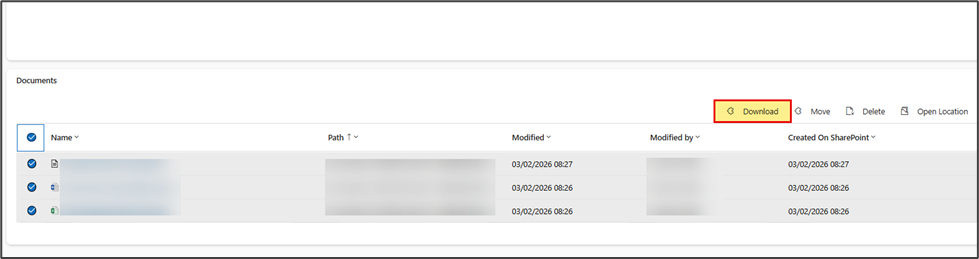
Step 2: JavaScript – Handling the Button Click
The JavaScript web resource performs the following tasks:
- Reads selected record IDs
- Shows a progress indicator
- Calls a Dataverse Custom Action for each record
- Receives SharePoint download URLs
- Triggers browser downloads
Key JavaScript Function
async function downloadItem(selectedControlItemIds) {
var Xrm = window.parent.Xrm;
var recordId = Xrm.Page.data.entity.getId()
const total = selectedControlItemIds.length;
for (const [index, itemId] of selectedControlItemIds.entries()) {
let current = index + 1;
Xrm.Utility.showProgressIndicator(`Downloading file ${current}/${total}`);
// Call Custom Action
let downloadUrls = await callDownloadAction(itemId, recordId);
if (downloadUrls) {
if (Array.isArray(downloadUrls)) {
for (const url of downloadUrls) {
triggerDownload(url);
}
} else {
triggerDownload(downloadUrls);
}
}
if (current === total) {
Xrm.Utility.closeProgressIndicator();
}
}
}
Download Helper
function triggerDownload(url) {
var anchor = document.createElement(“a”);
anchor.href = url;
anchor.download = “”;
document.body.appendChild(anchor);
anchor.click();
document.body.removeChild(anchor);
}
Calling the Dataverse Custom Action
function callDownloadAction(itemId, recordId) {
return new Promise((resolve, reject) => {
var parameters = {
FolderName: recordId,
RecordID: itemId
};
var req = new XMLHttpRequest();
var apiUrl = Xrm.Utility.getGlobalContext().getClientUrl()
+ “/api/data/v9.2/omac_DownloadFileFormSharpoint”;
req.open(“POST”, apiUrl, true);
req.setRequestHeader(“Content-Type”, “application/json; charset=utf-8”);
req.setRequestHeader(“Accept”, “application/json”);
req.onreadystatechange = function () {
if (req.readyState === 4) {
if (req.status === 200 || req.status === 204) {
var result = JSON.parse(req.responseText);
resolve(result[“DownloadablURL”]);
} else {
reject(req.responseText);
}
}
};
req.send(JSON.stringify(parameters));
});
}
Step 3: Custom Action (Dataverse)
A Custom Action is created with:
Input Parameters
- FolderName (string) → Parent record GUID
- RecordID (string) → Selected file record ID
Output Parameters
- DownloadablURL (string)
- FileName (string)
The action is executed by JavaScript and handled by a plugin.
Step 4: Plugin – Fetching Files from SharePoint
The plugin performs the heavy lifting:
- Resolves SharePoint document location
- Uses Microsoft Graph API
- Finds the correct file
- Generates a secure download URL
Plugin Core Logic (Simplified)
string FolderName = (string)context.InputParameters[“FolderName”];
string RecordID = (string)context.InputParameters[“RecordID”];
FolderName = CRMServicesObj.GetDocumentLocationRelativeUrl(service, FolderName);
Get SharePoint Folder via Graph API
var driveResponseJson = GraphApiService
.GetDriveItemAsync(FolderName, tenant, tracingService)
.GetAwaiter().GetResult();
Fetch Files & Generate Download URL
var (url, fileName) = GraphApiService
.GetMicrosoftGraphDownloadUrl(driveResponseJson, RecordID);
context.OutputParameters[“DownloadablURL”] = url;
context.OutputParameters[“FileName”] = fileName;
Why Microsoft Graph API?
- Secure
- Modern authentication (Azure AD)
- Works with SharePoint Online
- No legacy SharePoint SOAP APIs
Benefits of This Approach
✔ Works entirely inside Dynamics 365
✔ Supports single & multiple file downloads
✔ No Power Automate licensing cost
✔ Clean UI experience
✔ Browser-safe sequential downloads
✔ Reusable across entities
Final Thoughts
This pattern is extremely useful when: – Files are stored in SharePoint – Users want a one-click download experience – Performance and UX matter
With a small amount of JavaScript and a well-designed plugin, you can deliver a powerful enterprise-grade solution fully integrated with Dynamics 365.
Read more : dynamics 365 document management made simple
FAQ’s
Yes. This solution allows users to select one or multiple records and download all related SharePoint files in a single click directly from the Dynamics 365 UI.
No. The entire implementation works natively within Dynamics 365 using JavaScript, a Custom Action, a plugin, and Microsoft Graph API without Power Automate or external tools.
Yes. Microsoft Graph uses modern Azure AD authentication and provides secure, permission-based access to SharePoint Online files.
Absolutely. The solution is reusable across different entities and supports both single and multiple file downloads stored in SharePoint.