Table of Content
Overview
This guide covers how to implement an AI Builder Prediction Model in Microsoft Dynamics 365 that automatically scores incoming leads as Likely to Qualify or Unlikely to Qualify helping sales teams focus on the highest-value prospects.
What this solution delivers:
- 92% accurate binary classification model trained on 1,100 historical lead records
- Real-time predictions written back to Dynamics 365 Lead records via Power Automate
- Custom fields storing prediction result, probability score, and key influencing factors
- Sales teams see AI qualification scores directly inside the CRM interface
Technology Stack:
- AI Builder : model training, publishing, and prediction
- Dataverse : Lead entity as training data source and prediction output store
- Power Automate : automated flow to run predictions on new/updated leads
- Dynamics 365 Sales : CRM interface where results are visible to the sales team
Model Accuracy: 92% | Status: Implemented & Tested
Step 1 : Prepare Your Training Data
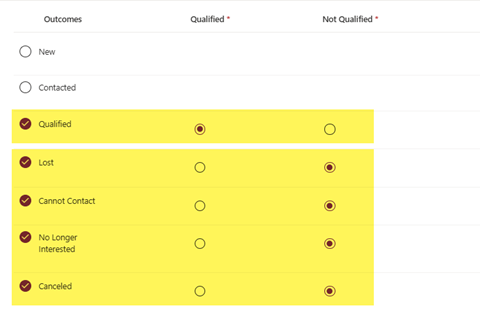
The model is trained on historical lead records from the Dynamics 365 Lead entity. Before training, the data must be filtered to include only leads with a definitive outcome.
Data source:
- Table: Leads (Dataverse) | Total records: 1,100 historical leads
- Exclude leads with status New or Contacted these have no final outcome yet
- Include only: Qualified, Lost, Cancelled, Cannot Contact, No Longer Interested
Predictor fields to use (available at lead creation time):
- Budget Amount, Annual Revenue, No. of Employees, Industry
- Job Title, Lead Source, Rating, Purchase Timeframe, Purchase Process
- Marketing Material accepted, Budget availability status
Outcome field:
- Field: Lead Status (Status Reason)
- Positive class: Qualified
- Negative class: Lost, Cancelled, Cannot Contact, No Longer Interested
Step 2 : Create & Train the AI Builder Model
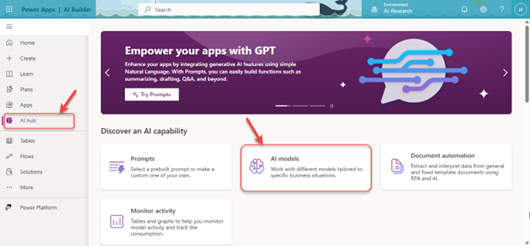
Navigate to Power Apps → AI Hub → AI Models to create the prediction model.
Steps to create the model:
- Open Power Apps (make.powerapps.com) and select AI Hub from the left menu
- Click AI Models → New → Prediction → ‘Predict future outcomes from historical data’
- Select the Lead table from Dataverse as your data source
- Set the outcome field to Status Reason, map Qualified as positive and all others as negative
- Add the 11 predictor fields listed in Step 1
- Apply data filters: exclude Status Reason = New and Status Reason = Contacted
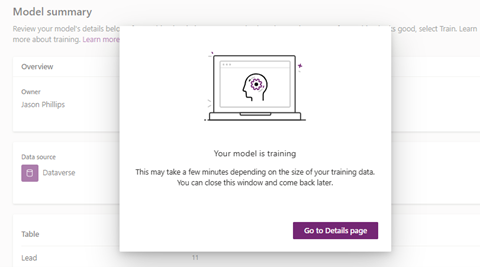
- Click Train training takes approximately 5–10 minutes
Step 3 : Review Results & Publish the Model
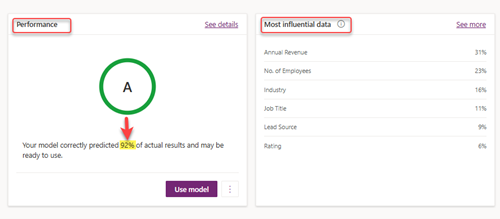
Once training completes, AI Builder shows the model performance report before you publish.
Model performance results:
- Overall Accuracy: 92% on the held-out test dataset
- Most influential features: Annual Revenue (31%), No. of Employees (23%), Industry (16%)
- Training split: ~880 records for training, ~220 records for testing (80/20 split)
Publishing:
- Review the performance metrics and influential factors screen
- Click Publish to make the model available in Power Automate
- Note the model name you will select it in the next step
Step 4 : Build the Power Automate Integration Flow
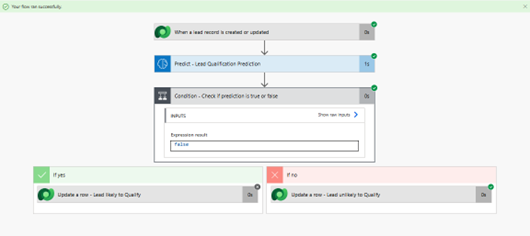
Create an automated cloud flow that runs every time a lead is created or updated in Dynamics 365, calls the AI Builder model, and writes the prediction results back to the lead record.
Flow setup:
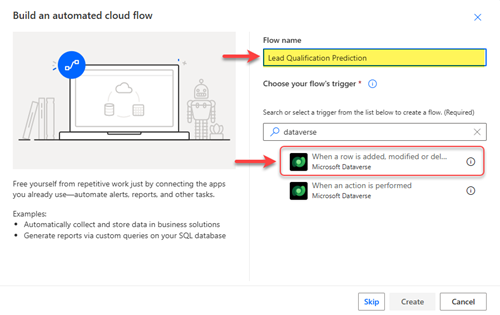
- Go to Power Automate → Create → Automated Cloud Flow
- Flow Name: Lead Qualification Prediction
- Trigger: Dataverse — ‘When a row is added, modified or deleted’
- Set Table: Leads | Change type: Added or Modified | Scope: Organization
Add AI Builder prediction:
- Add step: AI Builder → Predict → select your published model
- Map each predictor field to the matching dynamic content from the Lead trigger
Write results back to the lead:
- Add step: Dataverse → Update a row → Table: Leads
- Map AI Qualification Prediction → prediction result (Yes/No)
- Map AI Qualification Probability → probability score (0.0 to 1.0)
- Map AI Prediction Insights → feature influence JSON output
Step 5 : Create Custom Fields & Test
Before activating the flow, create three custom fields on the Lead entity in Dataverse to store the AI prediction outputs.
Custom fields to create (Power Apps → Tables → Lead → Columns → New Column):
- AI Qualification Prediction Choice field: Likely to Qualify / Unlikely to Qualify
- AI Qualification Probability (%) Decimal Number (0.0 to 1.0)
- AI Prediction Insights Multiple Lines of Text (stores feature influence JSON)
Testing the full flow:
- Go to Dynamics 365 Sales Hub → Leads → New
- Fill in predictor fields (Budget, Revenue, Industry, Job Title, etc.) and click Save
- The flow triggers automatically wait 2–4 seconds then refresh the lead record
- Open the AI Prediction tab to see qualification result, probability score, and insights
- Verify the flow run in Power Automate → My Flows → Run History — all steps should show green
Example prediction output:
- AI Qualification Prediction: Likely to Qualify
- AI Qualification Probability: 0.98 (98%)
- Top factors: Annual Revenue, No. of Employees, Rating (Hot), Job Title
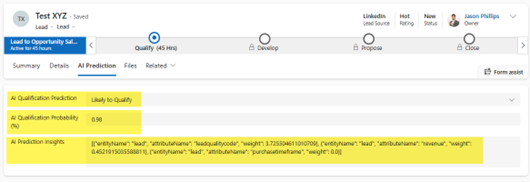
Implementation Complete Model trained, published, integrated, and validated successfully.
 is a software solution company that was established in 2016. Our quality services begin with experience and end with dedication. Our directors have more than 15 years of IT experience to handle various projects successfully. Our dedicated teams are available to help our clients streamline their business processes, enhance their customer support, automate their day-to-day tasks, and provide software solutions tailored to their specific needs. We are experts in Dynamics 365 and Power Platform services, whether you need Dynamics 365 implementation, customization, integration, data migration, training, or ongoing support.