Table of Content
1. What Is This System?
The WhatsApp Intent Scoring Agent is a smart assistant built into your Dynamics 365 CRM. It automatically reads every WhatsApp message sent to your business number, understands what the customer wants, and creates the right record in the system all within seconds and without anyone needing to do it manually.
The system handles messages in Arabic, English, and mixed language. It identifies whether a customer is a buyer, tenant, seller, landlord, or someone requesting maintenance, and it routes the message to the correct team automatically. It also drafts a professional reply in both English and Arabic, ready for the agent to review and send with a single click.
2. How Messages Are Handled Automatically
When a customer sends a WhatsApp message to your business number, the system takes over immediately. The entire process happens in the background with no manual input required from any team member.
| # | What Happens | Detail |
| 1 | Message Received | The customer’s WhatsApp message arrives and is instantly captured by the system. |
| 2 | Message Understood | The AI reads the message and identifies what the customer wants buying, renting, maintenance, complaint, and so on. |
| 3 | Priority Score Assigned | An intent score from 0 to 100 is calculated. Higher scores mean higher urgency and stronger buyer or tenant intent. |
| 4 | Record Created | The correct record type is created automatically a Lead for sales and leasing enquiries, a Case for maintenance and complaints. |
| 5 | Routed to Your Team | The record is dropped into the correct team queue so the right people see it immediately. |
| 6 | Reply Drafted | A professional bilingual reply is prepared and attached to the record, ready for the agent to review and send. |
3. Message Categories and Routing
The system recognises nine types of inbound messages and routes each one to the correct team. The agent does not need to manually assign anything it is all handled automatically based on what the customer wrote.
| Message Type | Record Created | Team Assigned |
| Buyer enquiry | Lead | Sales Team |
| Seller enquiry | Lead | Sales Team |
| Viewing request | Lead + Viewing Task | Sales Team |
| Rental or lease enquiry | Lead | Leasing Team |
| Owner enquiry | Lead | Owner Relations Team |
| Maintenance request | Case | Facilities Management Team |
| Urgent complaint | Case High Priority | Escalation Team |
| Document submission | Activity / Note | Admin Team |
| Spam or irrelevant | No record created | Discarded automatically |
4. Understanding the Intent Score
Every message receives an intent score between 0 and 100. This score tells the agent how urgent or serious the message is, helping prioritise workload at a glance without reading every message individually.
| Score | Priority | What It Means |
| 75 – 100 | Hot Act Immediately | Strong buyer intent or urgent issue. Respond within the hour. |
| 50 – 74 | Warm Same Day | Clear enquiry with enough detail to follow up. Respond today. |
| 25 – 49 | Low Standard Queue | Vague message with limited information. Normal queue handling. |
| 0 – 24 | Weak Low Priority | Unclear or incomplete. Likely needs clarification before actioning. |
5. Working With Records
Opening Your Queue
When you log into the Real Estate AI Agent App, navigate to My Queue Items or the Agent Dashboard. All records that have been automatically assigned to you or your team will appear here. You do not need to search for new messages they come to you.
Viewing a Lead or Case
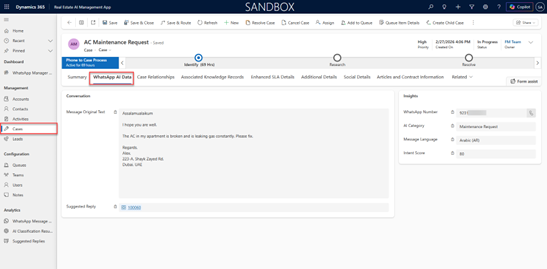
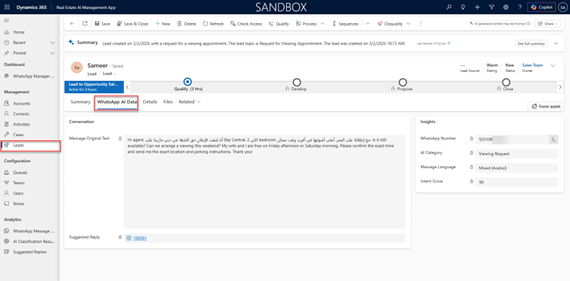
Open any Lead or Case record from your queue. Each record shows the customer’s original WhatsApp message, the AI category, the intent score, and the detected language all displayed together in the WhatsApp AI Data section of the form. This gives you full context before responding without needing to check any other system.
6. Sending a WhatsApp Reply
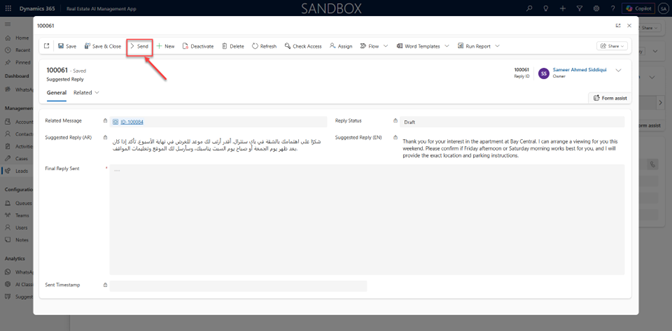
Replies are sent directly from within Dynamics 365. You never need to open WhatsApp manually or switch between applications. The AI prepares a draft reply for every message you simply review it, make any changes you need, and click Send.
| Step | What to Do |
| 1 | Open the Lead or Case record from your queue. |
| 2 | Scroll to the WhatsApp AI Data section and read the original message and the AI-suggested reply. |
| 3 | Click the related Suggested Reply record to open the reply form. |
| 4 | Review the AI-drafted reply in English and Arabic. If you want to make changes, type your edited version in the Final Reply field. |
| 5 | Click the Send Reply button in the top ribbon of the form. |
| 6 | A confirmation dialog will appear asking you to confirm the send. Click Send to proceed. |
| 7 | A loading indicator will appear for a few seconds while the message is delivered to the customer via WhatsApp. |
| 8 | The form refreshes automatically. The Reply Status will update to Sent, and the sent time is recorded. |
7. Manager Dashboard
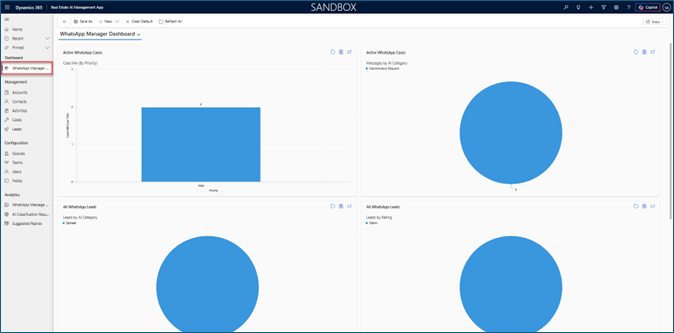
The Manager Dashboard provides a real-time overview of the team’s WhatsApp activity. It shows the distribution of message types received, average intent scores by category, the status of all replies across Draft, Approved, and Sent, and a breakdown of open leads and cases by priority. Managers can use this to spot bottlenecks, monitor response times, and ensure no high-priority messages are being missed.
8. Quick Reference
Use the table below as a day-to-day reference for the most common actions in the system.
| I want to… | What to do |
| See new messages from customers | Open My Queue Items or the Agent Dashboard |
| Check why a message was classified a certain way | Open the Lead or Case and read the WhatsApp AI Data tab |
| Edit the AI reply before sending | Open the Suggested Reply record and type in the Final Reply field |
| Send a reply to the customer | Click Send Reply in the ribbon and confirm |
| See if a reply was delivered | Check the Reply Status field on the Suggested Reply record it will show Sent |
| See overall team performance | Open the Manager Dashboard |
| Find all messages from a specific customer | Search for the customer’s Contact record in the Contacts section |
 is a software solution company that was established in 2016. Our quality services begin with experience and end with dedication. Our directors have more than 15 years of IT experience to handle various projects successfully. Our dedicated teams are available to help our clients streamline their business processes, enhance their customer support, automate their day-to-day tasks, and provide software solutions tailored to their specific needs. We are experts in Dynamics 365 and Power Platform services, whether you need Dynamics 365 implementation, customization, integration, data migration, training, or ongoing support.