

Introduction
In this blog post, we’ll walk you through the process of creating and executing a custom action and Early Bound Class in Dynamics 365. We’ll cover everything from creating the custom action and generating early bound classes to writing the plugin code and executing the action via workflow. Let’s get started!
Creating the Custom Action
The first step in our process is to create a custom action with the necessary input and output parameters. This allows us to define the operation we want to perform and specify the data that will be used and returned.
Steps:
1. Navigate to the Solution in Dynamics 365.
2. Create a new Action in the Processes section.
3. Define the Input and Output parameters. For this example, we used:
– Input Parameters: `Money1` Type (Money), `Money2` Type (Money), `Target` Type (Entity Reference)
– Output Parameter: `MoneySum` Type (Money)

Generating Early Bound Classes
Next, we need to generate early bound classes using the XRM Toolbox.
Steps:
1. Open XRM Toolbox and open the Early Bound Generator V2 Tool.
2. Add the custom action to the Message Whitelist.
3. Generate the early bound classes.


Writing the Plugin Code
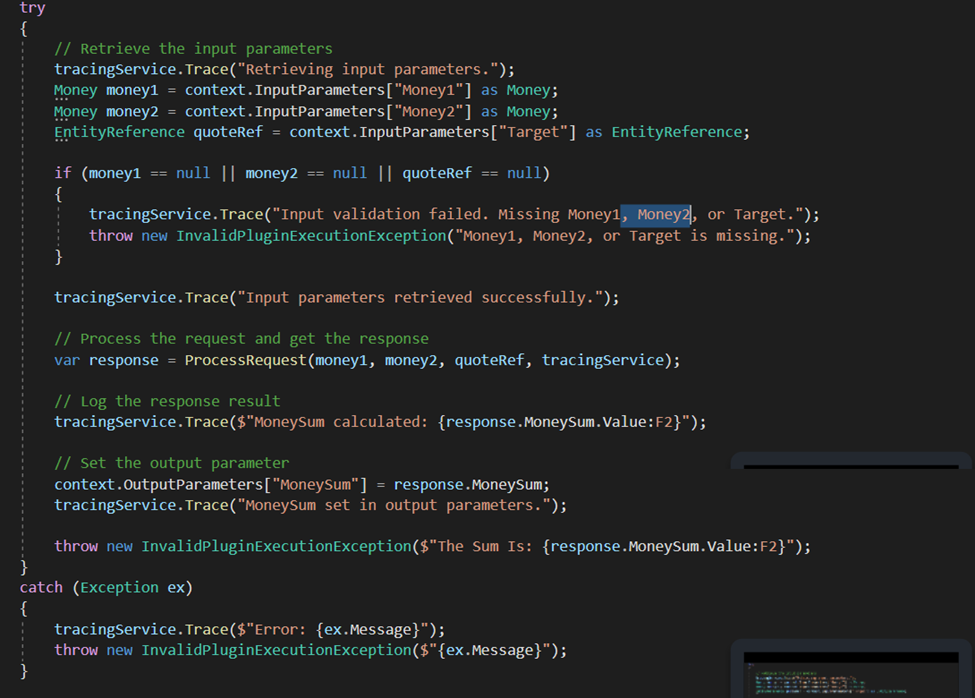
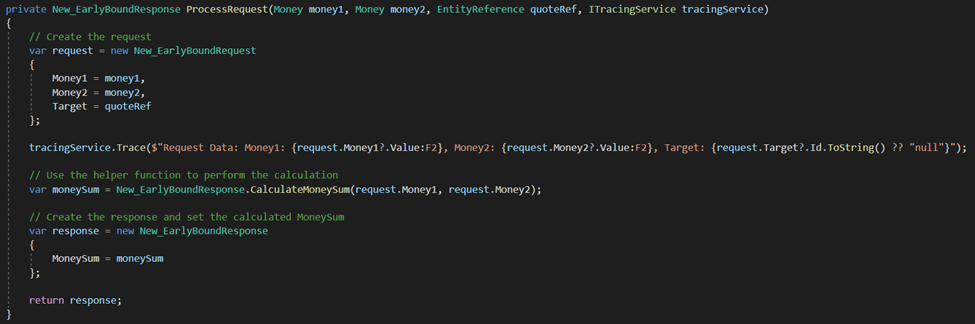
With the early bound classes in place, we can now write the plugin code to perform the functionality. This involves calculating the sum of the input money values and setting the result in the output parameter.
Steps:
1. Create a new class that implements the `IPlugin` interface.
2. Retrieve and validate the input parameters.
3. Perform the sum calculation.
4. Set the result in the output parameter.
5. Register the plugin.
Here’s a snippet of the plugin code:
CSharp (C#):
Registering the Plugin
After writing the plugin code, the next step is to register the plugin using the Plugin Registration Tool.
Steps:
1. Open Plugin Registration Tool.
2. Register the new plugin assembly.
3. Add a step for the plugin and set the message to the custom action created earlier.

Executing the Action via Workflow in Dynamics CRM
Finally, we use a workflow in Dynamics 365 to trigger the custom action. This allows us to automate the execution of our custom actions based on specific criteria.
Steps:
1. Create a new Workflow in Dynamics 365.
2. Add a step to Perform Action. 3. Set the input fields with the appropriate values, including the quote entity reference

Conclusion
By following these steps, you can create and execute a custom action in Dynamics 365. This process involves creating the action, generating early bound classes, writing the plugin code, registering the plugin, and finally, triggering the action via workflow. With these tools and techniques, you can extend the functionality of Dynamics 365 to meet your unique business requirements.
Readmore : optimizing ecommerce operations with dynamics crm
FAQ’s
When creating a custom action in Dynamics 365, you need to define both input and output parameters. For example:
Input Parameters: Money1 (Type: Money), Money2 (Type: Money), Target (Type: Entity Reference)
Output Parameter: MoneySum (Type: Money) These parameters allow the action to perform calculations or operations and return the results.
To generate early bound classes for your custom action using the XRM Toolbox:
Open the XRM Toolbox.
Use the Early Bound Generator V2 Tool.
Add your custom action to the Message Whitelist.
Generate the early bound classes. This process provides a strongly-typed representation of your custom action, simplifying the development process.
To register and execute a plugin for a custom action in Dynamics 365:
Open the Plugin Registration Tool.
Register the new plugin assembly.
Add a step for the plugin and set the message to the custom action created earlier. To execute the action, create a new workflow in Dynamics 365, add a step to perform the action, and set the input fields with the appropriate values.