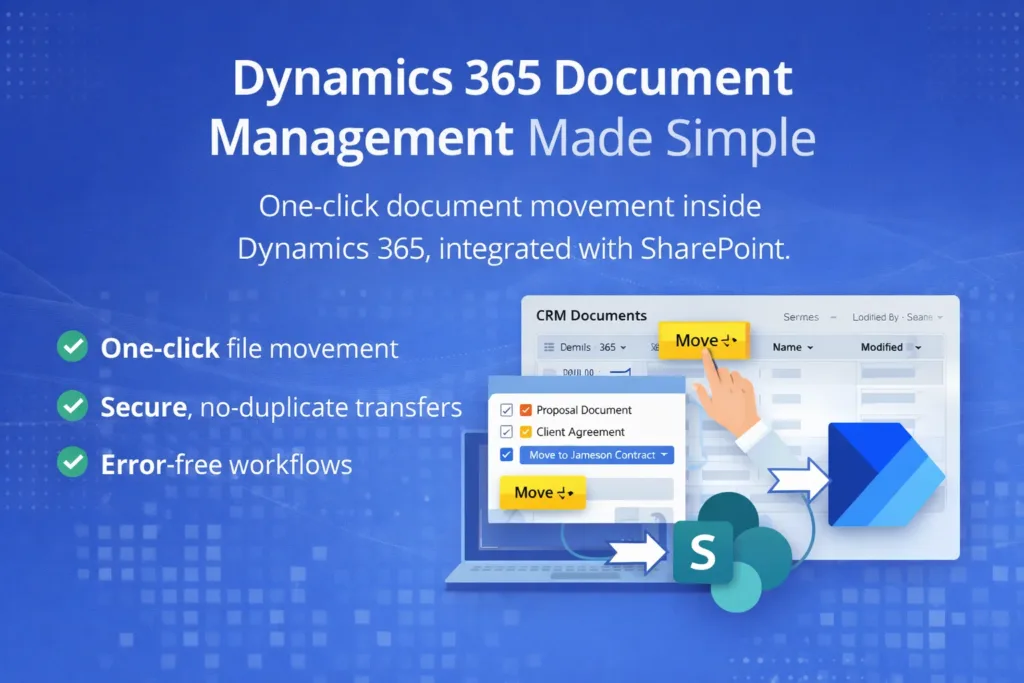
In many Dynamics 365 / Dataverse projects, users store documents in SharePoint document locations and later need a simple, user-friendly way to download one or multiple files directly from the CRM UI.
Out of the box, Dynamics does not provide an elegant solution to: – Select multiple records – Click a custom button – Download the related SharePoint files in one go
This blog explains a real-world production-ready solution using:
- A custom ribbon button/command bar button
- JavaScript (Web Resource)
- A Custom Action + Plugin
- Microsoft Graph API to fetch files from SharePoint
High-Level Architecture

Business Requirement
- User selects one or multiple records (files)
- Clicks Download Files button
- System downloads files stored in SharePoint
- No Power Automate
- No external tools
- Works directly inside the browser
Step 1: Custom Button (Command Bar)
A custom button is added to the grid or subgrid using: – Ribbon Workbench or – Modern Command Designer
The button passes the selected record IDs to JavaScript.
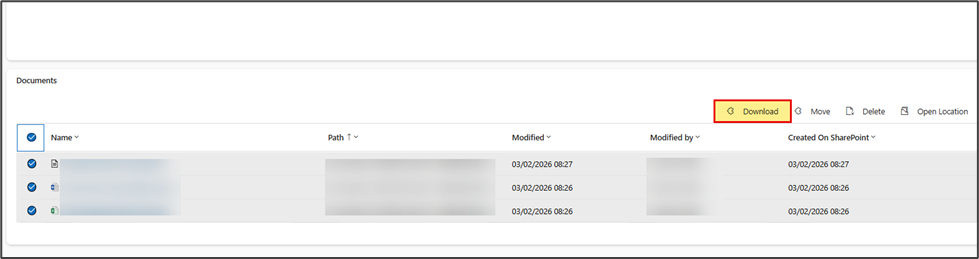
Step 2: JavaScript – Handling the Button Click
The JavaScript web resource performs the following tasks:
- Reads selected record IDs
- Shows a progress indicator
- Calls a Dataverse Custom Action for each record
- Receives SharePoint download URLs
- Triggers browser downloads
Key JavaScript Function
async function downloadItem(selectedControlItemIds) {
var Xrm = window.parent.Xrm;
var recordId = Xrm.Page.data.entity.getId()
const total = selectedControlItemIds.length;
for (const [index, itemId] of selectedControlItemIds.entries()) {
let current = index + 1;
Xrm.Utility.showProgressIndicator(`Downloading file ${current}/${total}`);
// Call Custom Action
let downloadUrls = await callDownloadAction(itemId, recordId);
if (downloadUrls) {
if (Array.isArray(downloadUrls)) {
for (const url of downloadUrls) {
triggerDownload(url);
}
} else {
triggerDownload(downloadUrls);
}
}
if (current === total) {
Xrm.Utility.closeProgressIndicator();
}
}
}
Download Helper
function triggerDownload(url) {
var anchor = document.createElement(“a”);
anchor.href = url;
anchor.download = “”;
document.body.appendChild(anchor);
anchor.click();
document.body.removeChild(anchor);
}
Calling the Dataverse Custom Action
function callDownloadAction(itemId, recordId) {
return new Promise((resolve, reject) => {
var parameters = {
FolderName: recordId,
RecordID: itemId
};
var req = new XMLHttpRequest();
var apiUrl = Xrm.Utility.getGlobalContext().getClientUrl()
+ “/api/data/v9.2/omac_DownloadFileFormSharpoint”;
req.open(“POST”, apiUrl, true);
req.setRequestHeader(“Content-Type”, “application/json; charset=utf-8”);
req.setRequestHeader(“Accept”, “application/json”);
req.onreadystatechange = function () {
if (req.readyState === 4) {
if (req.status === 200 || req.status === 204) {
var result = JSON.parse(req.responseText);
resolve(result[“DownloadablURL”]);
} else {
reject(req.responseText);
}
}
};
req.send(JSON.stringify(parameters));
});
}
Step 3: Custom Action (Dataverse)
A Custom Action is created with:
Input Parameters
- FolderName (string) → Parent record GUID
- RecordID (string) → Selected file record ID
Output Parameters
- DownloadablURL (string)
- FileName (string)
The action is executed by JavaScript and handled by a plugin.
Step 4: Plugin – Fetching Files from SharePoint
The plugin performs the heavy lifting:
- Resolves SharePoint document location
- Uses Microsoft Graph API
- Finds the correct file
- Generates a secure download URL
Plugin Core Logic (Simplified)
string FolderName = (string)context.InputParameters[“FolderName”];
string RecordID = (string)context.InputParameters[“RecordID”];
FolderName = CRMServicesObj.GetDocumentLocationRelativeUrl(service, FolderName);
Get SharePoint Folder via Graph API
var driveResponseJson = GraphApiService
.GetDriveItemAsync(FolderName, tenant, tracingService)
.GetAwaiter().GetResult();
Fetch Files & Generate Download URL
var (url, fileName) = GraphApiService
.GetMicrosoftGraphDownloadUrl(driveResponseJson, RecordID);
context.OutputParameters[“DownloadablURL”] = url;
context.OutputParameters[“FileName”] = fileName;
Why Microsoft Graph API?
- Secure
- Modern authentication (Azure AD)
- Works with SharePoint Online
- No legacy SharePoint SOAP APIs
Benefits of This Approach
✔ Works entirely inside Dynamics 365
✔ Supports single & multiple file downloads
✔ No Power Automate licensing cost
✔ Clean UI experience
✔ Browser-safe sequential downloads
✔ Reusable across entities
Final Thoughts
This pattern is extremely useful when: – Files are stored in SharePoint – Users want a one-click download experience – Performance and UX matter
With a small amount of JavaScript and a well-designed plugin, you can deliver a powerful enterprise-grade solution fully integrated with Dynamics 365.
Read more : dynamics 365 document management made simple
FAQ’s
Yes. This solution allows users to select one or multiple records and download all related SharePoint files in a single click directly from the Dynamics 365 UI.
No. The entire implementation works natively within Dynamics 365 using JavaScript, a Custom Action, a plugin, and Microsoft Graph API without Power Automate or external tools.
Yes. Microsoft Graph uses modern Azure AD authentication and provides secure, permission-based access to SharePoint Online files.
Absolutely. The solution is reusable across different entities and supports both single and multiple file downloads stored in SharePoint.
 is a software solution company that was established in 2016. Our quality services begin with experience and end with dedication. Our directors have more than 15 years of IT experience to handle various projects successfully. Our dedicated teams are available to help our clients streamline their business processes, enhance their customer support, automate their day-to-day tasks, and provide software solutions tailored to their specific needs. We are experts in Dynamics 365 and Power Platform services, whether you need Dynamics 365 implementation, customization, integration, data migration, training, or ongoing support.