If you’ve been working in Dynamics 365 for more than a few months, you’ve almost certainly hit a wall with the standard Advanced Find. You need accounts that have no related opportunities. Or leads where a specific field has never been set. Or contacts linked to cases that were closed more than 90 days ago. You click through the filter builder, add your conditions, run the query and either get the wrong results or a blank screen that you’re not sure you can trust.
The problem isn’t you. The problem is that the standard filter UI simply cannot express certain types of questions. FetchXML can.
What FetchXML Actually Is
FetchXML is the query language that Dynamics 365 uses internally. Every time you build a view or run an Advanced Find, the platform converts what you’ve built into FetchXML behind the scenes and fires it at Dataverse. You’ve been using FetchXML all along you just haven’t seen it.
What that means in practice: you can take the XML that Advanced Find already generated, copy it, make targeted edits in plain text, and run it again. No Visual Studio. No plugins. No API calls.
The Three Scenarios Where Filters Fail You
1. “Show me records where the related record does NOT exist”
Advanced Find can filter by related records. It cannot filter for the absence of them. If you want accounts that have zero active opportunities, the filter UI will steer you wrong it’ll often return accounts that have some opportunities but none matching a sub-condition, which is a different thing entirely.
2. Aggregate conditions across related records
“Contacts who have more than 3 open cases” is not something you can express with standard filters. Filters work row-by-row. FetchXML supports aggregate functions count, sum, avg that let you filter based on the result of a calculation across child records.
3. Outer joins for “missing relationship” queries
In SQL terms, standard filters do inner joins. If you want to surface the gap records on the left that have nothing on the right you need an outer join. FetchXML supports link-entity with link-type=”outer” combined with a null check on the joined entity’s ID, which is the correct pattern for these queries.
How to Get Started Without Writing Anything
Here’s the workflow. It takes about two minutes once you know it.
Step 1: Build the closest approximation in Advanced Find
Open Advanced Find (the funnel icon, or navigate to it via the top menu in model-driven apps). Build whatever filter gets you closest to what you need even if it’s incomplete. Add the columns you want to see in the results.
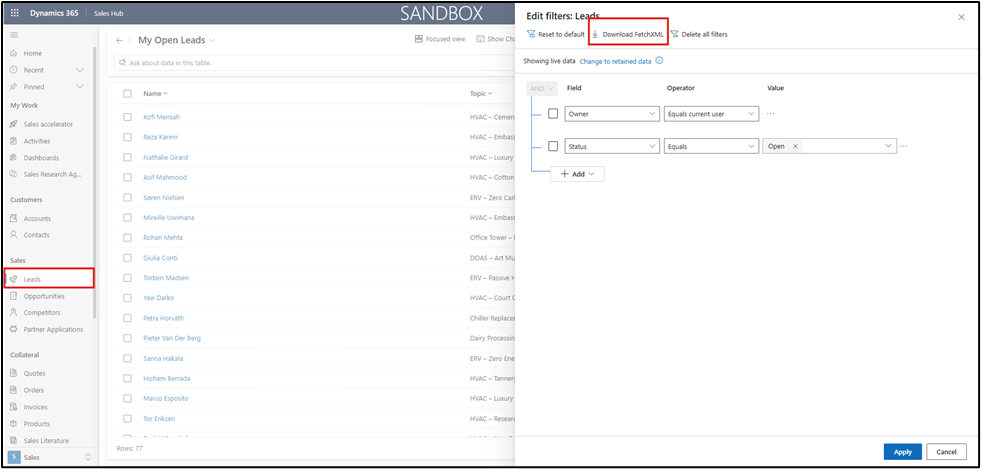
Step 2: Click “Download FetchXML”
In the Advanced Find ribbon, there’s a button labelled Download FetchXML. Click it. You’ll get a small .xml file. Open it in Notepad, VS Code, or any text editor.
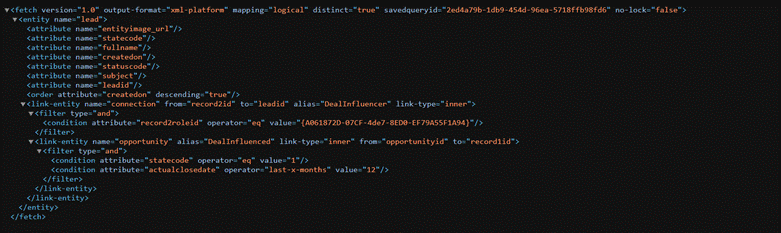
What you’ll see looks something like this:
<fetch version=”1.0″ output-format=”xml-platform” mapping=”logical” distinct=”false”>
<entity name=”account”>
<attribute name=”name” />
<attribute name=”accountid” />
<filter type=”and”>
<condition attribute=”statecode” operator=”eq” value=”0″ />
</filter>
</entity>
</fetch>
That’s the entire query. Readable, editable, no magic.
Step 3: Make your targeted edit
This is where FetchXML earns its keep. Here are the three most practical edits you’ll actually use.
Edit #1: Filter for Records with No Related Records
Add a link-entity block with link-type=”outer” and a null condition on the linked entity’s primary key. This is the outer-join-plus-null-check pattern:
<fetch version=”1.0″ output-format=”xml-platform” mapping=”logical” distinct=”true”>
<entity name=”account”>
<attribute name=”name” />
<attribute name=”accountid” />
<link-entity name=”opportunity” from=”parentaccountid” to=”accountid”
link-type=”outer” alias=”opp”>
<attribute name=”opportunityid” />
</link-entity>
<filter type=”and”>
<condition entityname=”opp” attribute=”opportunityid” operator=”null” />
</filter>
</entity>
</fetch>
Translation: give me all accounts, left-join their opportunities, then keep only the rows where the opportunity ID came back empty. That’s every account with zero opportunities.
Notice the distinct=”true” on the fetch element always add this on outer-join queries or you’ll get duplicate account rows.
Edit #2: Use the not-in and not-null Operators the UI Hides
Standard filters expose a limited set of operators. FetchXML exposes all of them. Two that come up constantly:
not-null — the field has a value (any value):
<condition attribute=”emailaddress1″ operator=”not-null” />
in and not-in — match or exclude a specific list of values. Useful for option sets:
<condition attribute=”statecode” operator=”not-in”>
<value>1</value>
<value>2</value>
</condition>
The UI’s “Does Not Equal” only handles one value at a time. not-in handles a list in a single condition.
Edit #3: Date Operators That Actually Work
The Advanced Find date filters are frustrating. FetchXML ships with over 20 built-in date intelligence operators that require zero hardcoded dates and respect the user’s timezone:
<condition attribute=”createdon” operator=”last-x-days” value=”30″ />
<condition attribute=”modifiedon” operator=”this-month” />
<condition attribute=”closedate” operator=”next-x-weeks” value=”2″ />
No more building “greater than [today minus 30]” workarounds. These operators are dynamic — they recalculate every time the query runs.
Read more : advanced fetchxml for dynamics 365 reporting
How to Run Your Edited FetchXML
Once you’ve made your edits, you have two no-code options to run the query:
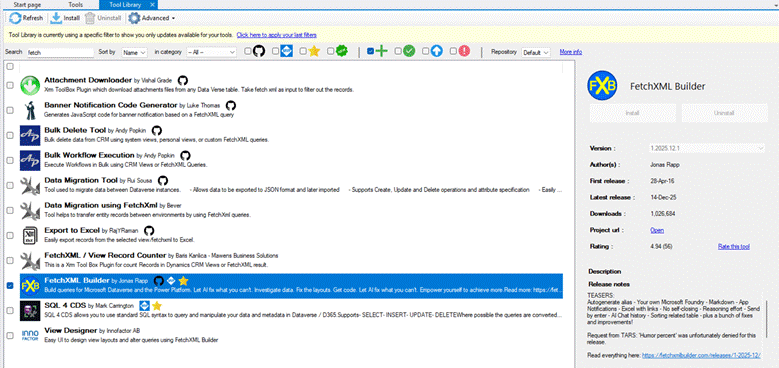
Option A: FetchXML Builder (XrmToolBox) XrmToolBox is a free community tool with a plugin called FetchXML Builder. Paste your XML, click Execute, and see results in a grid. You can also build queries visually and it’ll write the XML for you. This is the go-to tool for anyone who works with Dynamics data regularly.
Option B: Upload back into Advanced Find In Advanced Find, there’s an Upload FetchXML button next to the download one. Paste your modified query in, hit OK, and your results appear in the standard results view with all the usual export options.
That’s the full loop. Advanced Find generates the boilerplate, you make a surgical edit, you run it right back in the same interface.
A Quick Reference: Operators the UI Doesn’t Show You
| What You Need | FetchXML Operator |
| Field is empty | null |
| Field has any value | not-null |
| Matches a list | in |
| Excludes a list | not-in |
| Last N days | last-x-days |
| Next N weeks | next-x-weeks |
| Current fiscal year | this-fiscal-year |
| Related record is absent | link-type=”outer” + null on ID |
| Begins with | begins-with |
| Does not begin with | not-begin-with |
The Mindset Shift
The biggest thing FetchXML gives you isn’t a new tool it’s the ability to ask precise questions. Every ambiguous filter result you’ve accepted, every “close enough” view you’ve built around the UI’s limitations, every time you exported to Excel to filter manually those are all FetchXML problems waiting to be solved.
You’re already one “Download FetchXML” button away from the raw query. The edits you need are usually five or ten words. The results are exact.
Start with one query you’ve never been able to get right. Download the XML, find the condition that’s wrong, swap in the operator from the table above. You’ll have it working before you’d finish explaining the problem to a developer.
Read more : dynamics crm at scale trouble shooting guide
FAQ’s
No, you don’t. You can simply download the query from Microsoft Dynamics 365, make small edits, and reuse it.
Use it when filters don’t work properly—like finding missing related records or using advanced conditions.
Yes, you can upload it back into Advanced Find or use tools like XrmToolBox to execute it easily.
 is a software solution company that was established in 2016. Our quality services begin with experience and end with dedication. Our directors have more than 15 years of IT experience to handle various projects successfully. Our dedicated teams are available to help our clients streamline their business processes, enhance their customer support, automate their day-to-day tasks, and provide software solutions tailored to their specific needs. We are experts in Dynamics 365 and Power Platform services, whether you need Dynamics 365 implementation, customization, integration, data migration, training, or ongoing support.