Maintaining a tidy CRM involves not only what you add but also what you leave out. When spam emails are synced into Microsoft Dynamics 365, they can clutter timelines, distort AI-generated relationship insights, and take up precious Dataverse storage.
The best approach to prevent this is at the Exchange level, stopping the unwanted noise before it reaches the Dynamics 365 synchronization engine.
The Core Strategy: Filtering Before Syncing
Dynamics 365 Server-Side Synchronization (SSS) generally checks the Inbox of a user’s mailbox. If Exchange Online Protection (EOP) filteras a message into the Junk Email folder, Dynamics 365 will, by default, disregard it.
Nevertheless, simply using “Move to Junk” may not suffice in high-volume settings. To effectively stop spam synchronization, it is advisable to adopt a Quarantine or Block approach.
A. Upgrade Anti-Spam Actions to “Quarantine”
Rather than letting spam accumulate in the “Junk Email” folder (where a user might inadvertently “Track” it), adjust your anti-spam settings to quarantine high-confidence spam.
- Access the Microsoft Defender Portal. (https://www.google.com/search?q=security.microsoft.com).
- Proceed to Email & Collaboration > Policies & Rules > Threat Policies > Anti-spam.
- Modify your Inbound policy and configure it as follows:
a. Spam: Move message to Junk Email folder (or Quarantine).
b. High confidence spam: Quarantine message.
c. Phishing / High confidence phishing: Quarantine message.
Reason for this approach: Quarantined messages do not enter the mailbox, ensuring that the Dynamics 365 sync engine does not encounter them.
Using Mail Flow Rules (Transport Rules) for Custom Blocking
If you are noticing particular instances of “grey mail” (legitimate yet unwanted bulk mail) affecting your CRM, Mail Flow Rules serve as your most effective tool. You can manually adjust the Spam Confidence Level (SCL) based on keywords or sender characteristics.
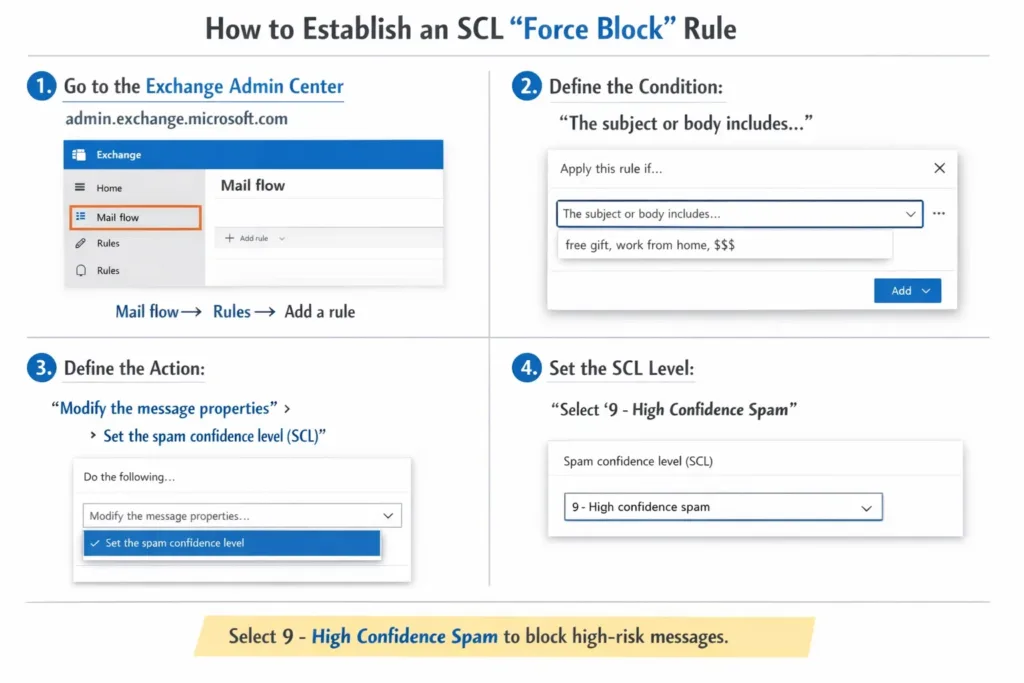
How to establish an SCL “Force Block” Rule:
- Access the Exchange Admin Center (https://www.google.com/search?q=admin.exchange.microsoft.com).
- Navigate to Mail Flow > Rules > Add a rule.
- Define the condition: “The subject or body includes…” (insert your common spam keywords).
- Define the action: Modify the message properties > Set the spam confidence level (SCL).
- Select 9 (High Confidence Spam).
The Outcome: Any email that meets your specified criteria is promptly marked with an SCL of 9. According to your Anti-Spam policy (from Step 1), Exchange will subsequently delete or quarantine the message before Dynamics 365 has the chance to sync it.
Optimizing Dynamics 365 “Personal Options”
Despite effective Exchange filtering, the Tracking Settings in Dynamics 365 serve as an additional gatekeeper. Many users unintentionally sync spam by selecting the incorrect tracking “Filter.”
The “Safe” Configuration:
In Dynamics 365, users should navigate to Settings (Gear Icon) > Personalization Settings > Email Tab:
- Track: Adjust this from “All email messages” to either “Email messages in response to Dynamics 365 email” or “Email messages from Dynamics 365 Leads, Contacts, and Accounts.”
Warning: Choosing “All email messages” instructs Dynamics 365 to try to track every email that arrives in the Inbox. This is the primary reason spam infiltrates the CRM. By restricting tracking to recognized records or ongoing conversations, you establish a natural firewall.
Solving the “Shared Mailbox” Spam Trap
Shared mailboxes designated for Queues (e.g., support@company.com) are frequently targeted by spam sync, as they are typically configured to monitor “All Email” to guarantee that no customer tickets are overlooked.
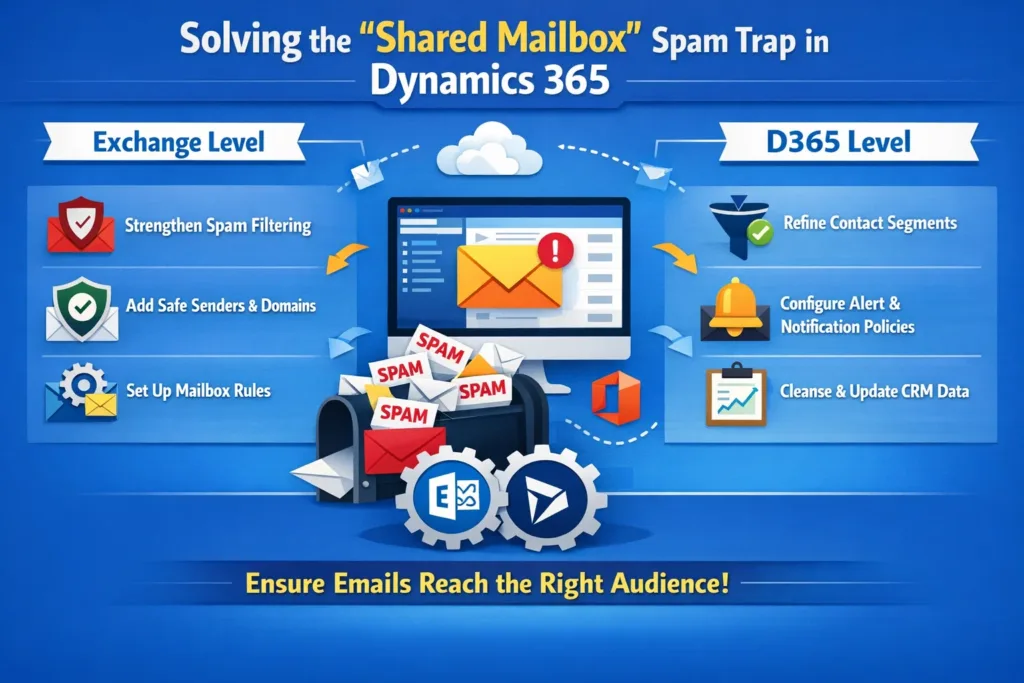
The Solution:
- Exchange Level: Implement a more stringent Bulk Complaint Level (BCL) threshold for shared mailboxes. A significant portion of spam is categorized as “Bulk” mail. By establishing a BCL of 5 or 6 in Exchange, you can filter out more marketing clutter from the support queue.
- D365 Level: Utilize Power Automate to “Clean” the queue. Rather than a direct sync, employ a flow that verifies the sender’s domain against an “Allowed List” prior to generating a Case or Activity in Dynamics 365.
Summary Checklist for Admins
| Action Level | Configuration | Benefit |
| Exchange (EOP) | Set High Confidence Spam to Quarantine | Messages never hit the mailbox; 0% chance of sync. |
| Exchange (Rules) | Create Mail Flow Rules to set SCL to 9 | Block specific recurring spam patterns/keywords. |
| Dynamics 365 | Set User Tracking to “In Response to…” | Only syncs relevant business conversations. |
| Dataverse | Use Duplicate Detection on Leads/Contacts | Prevents spam from creating dozens of “dummy” records. |
Conclusion
Keeping spam out of Dynamics 365 starts before emails ever reach your CRM. By strengthening Exchange-level filtering, enforcing SCL rules, and using the right tracking settings in Dynamics 365, you prevent cluttered timelines, protect Dataverse storage, and preserve accurate AI-driven insights. A clean CRM isn’t about cleanup it’s about smart prevention.
Read more : ai agents for order to cash automation efficiency
FAQ’s
Because quarantined or blocked emails never reach the mailbox, Dynamics 365 cannot sync them at all.
Usually yes, but high volumes or user actions can still cause issues—quarantine is the safest option.
Setting email tracking to “All email messages”, which allows every inbox email to be evaluated for sync.
 is a software solution company that was established in 2016. Our quality services begin with experience and end with dedication. Our directors have more than 15 years of IT experience to handle various projects successfully. Our dedicated teams are available to help our clients streamline their business processes, enhance their customer support, automate their day-to-day tasks, and provide software solutions tailored to their specific needs. We are experts in Dynamics 365 and Power Platform services, whether you need Dynamics 365 implementation, customization, integration, data migration, training, or ongoing support.