Table of Content
Modern businesses rely heavily on automation to streamline operations, improve efficiency, and maintain data accuracy. However, when working with Microsoft Dynamics 365, many developers and solution architects often ask the same question:
Should we use Plugins, Power Automate, or Azure Logic Apps for automation?
Although all three tools can automate processes, they serve different purposes, performance needs, and architectural scenarios. Therefore, understanding when to use each option is essential for building scalable and efficient Dynamics 365 solutions.
In this guide, we will compare Dynamics 365 Plugins, Power Automate, and Azure Logic Apps, explore real-world use cases, and help you decide which option is best for your business workflows.
Understanding Automation Options in Dynamics 365
Before diving into comparisons, it is important to understand what each automation tool actually does.
Dynamics 365 Plugins
Plugins are custom C# code that runs directly within the Dynamics 365 execution pipeline. They trigger when specific events occur in the system.
For example:
- When a record is created
- When a field is updated
- When a record is deleted
- When a custom action is triggered
Because plugins execute inside the Dynamics 365 platform, they provide high performance and deep control over business logic.
Key Characteristics of Plugins
- Written in C# using .NET
- Execute synchronously or asynchronously
- Trigger within the Dynamics event pipeline
- Ideal for real-time validation and logic
- Best for complex business rules
Power Automate
Power Automate (formerly Microsoft Flow) is a low-code automation platform that connects Dynamics 365 with other services.
Instead of writing code, users can design workflows visually using connectors and triggers.
For example:
- Send an email when a lead is created
- Create a task when an opportunity closes
- Sync Dynamics data with SharePoint
- Notify teams in Microsoft Teams
Power Automate is therefore ideal for business automation without heavy development.
Key Characteristics of Power Automate
- Low-code / no-code solution
- Hundreds of connectors (Office 365, SharePoint, Teams, etc.)
- Cloud-based workflows
- Easy to maintain by business users
- Great for integration and notifications
Azure Logic Apps
Azure Logic Apps are enterprise-grade integration workflows built in Microsoft Azure. While they look similar to Power Automate, they are designed for large-scale enterprise integrations.
For instance, organizations use Logic Apps for:
- Integrating ERP systems
- Processing large data volumes
- Connecting on-premise systems
- Running scheduled enterprise workflows
Because Logic Apps run in Azure, they provide advanced scalability and integration capabilities.
Key Characteristics of Azure Logic Apps
- Enterprise integration platform
- Handles large-scale workflows
- Supports advanced connectors and APIs
- Better for complex system integrations
- Designed for cloud architecture
Plugins vs Power Automate vs Azure Logic Apps
The best automation approach depends on performance requirements, complexity, and integration needs.
Below is a quick comparison to help you understand the differences.
| Feature | Plugins | Power Automate | Azure Logic Apps |
|---|---|---|---|
| Development Type | Code (C#) | Low-Code | Low-Code / Cloud |
| Execution Speed | Very Fast | Moderate | Moderate |
| Real-Time Processing | Yes | Limited | Limited |
| Integration Capabilities | Limited | Strong | Very Strong |
| Scalability | Platform-bound | Moderate | Enterprise Scale |
| Maintenance | Developer Required | Business Friendly | DevOps Required |
Therefore, selecting the right tool depends on what problem you are trying to solve.
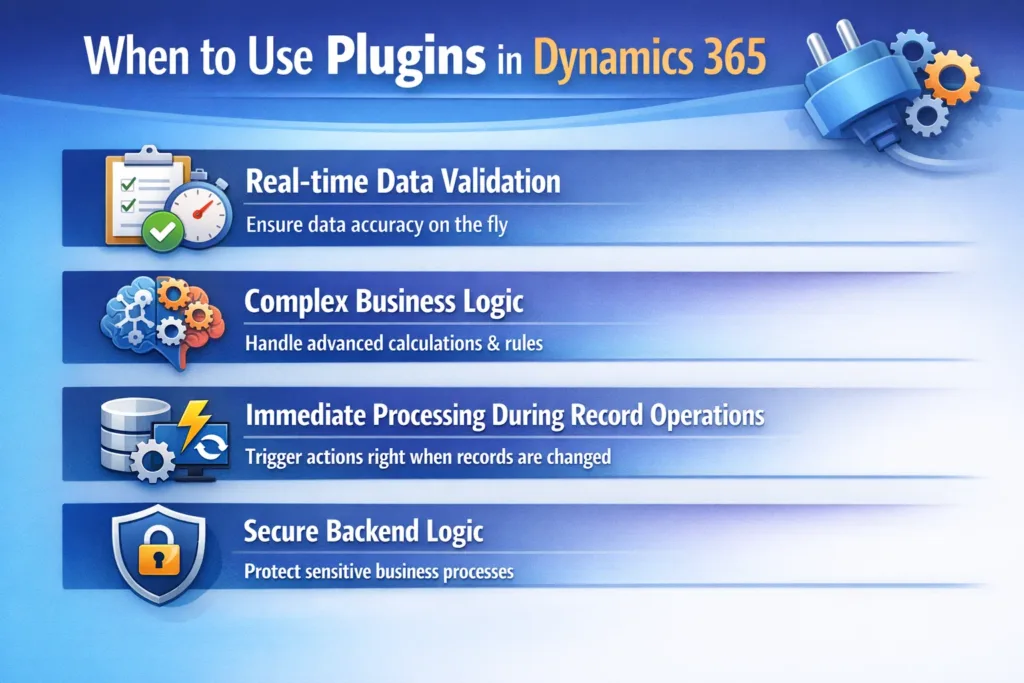
When to Use Plugins in Dynamics 365
Plugins are the best choice when performance and real-time processing are critical.
Ideal Scenarios for Plugins
Use plugins when you need:
- Real-time data validation
- Complex business logic
- Immediate processing during record operations
- Secure backend logic
For example:
- Automatically calculating pricing when an opportunity is updated
- Preventing duplicate records during creation
- Applying compliance validation rules
Because plugins run directly inside Dynamics 365, they ensure fast and reliable execution.
However, plugins require development expertise and proper deployment processes.
When to Use Power Automate
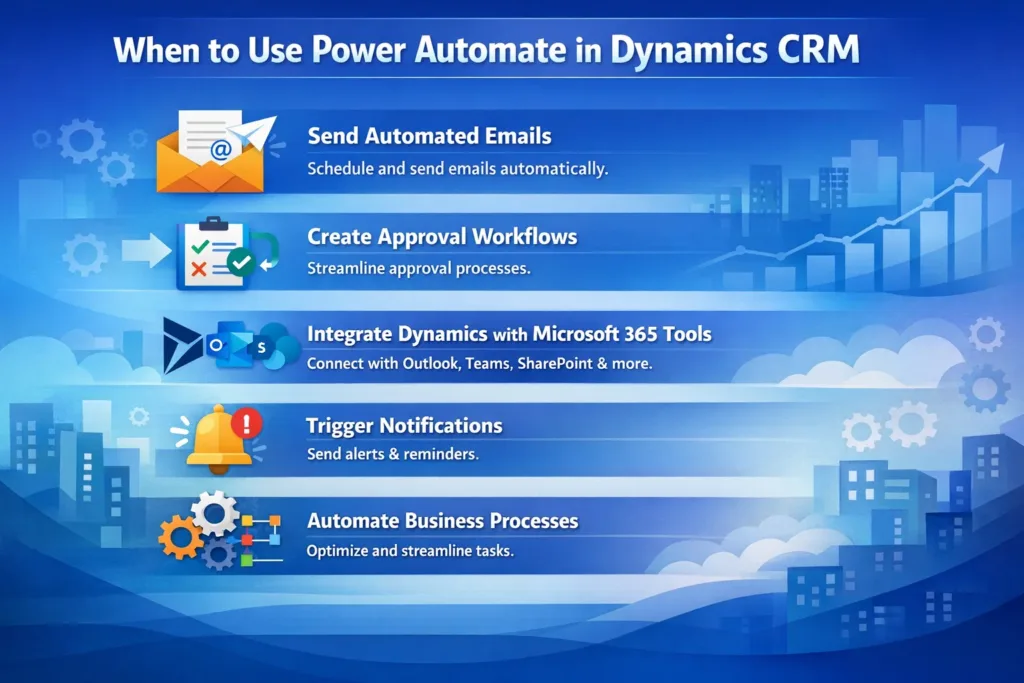
Power Automate is ideal for workflow automation and integrations without coding.
Best Use Cases
Use Power Automate when you need to:
- Send automated emails
- Create approval workflows
- Integrate Dynamics with Microsoft 365 tools
- Trigger notifications
- Automate business processes
Examples include:
- Sending alerts when a high-value opportunity is created
- Notifying sales managers in Microsoft Teams
- Creating tasks for follow-up activities
Additionally, Power Automate allows business users to manage automation, which reduces dependency on developers.
When to Use Azure Logic Apps
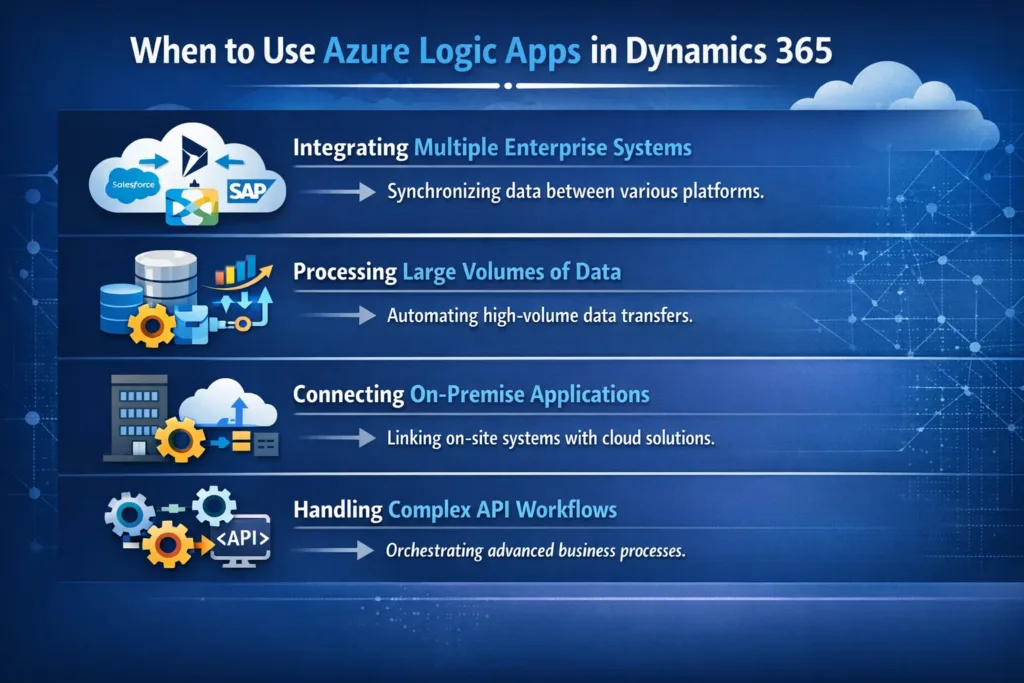
Azure Logic Apps should be used when enterprise integration and scalability are required.
Best Use Cases
Logic Apps are ideal when:
- Integrating multiple enterprise systems
- Processing large volumes of data
- Connecting on-premise applications
- Handling complex API workflows
For example:
- Syncing data between Dynamics 365 and SAP
- Processing large datasets from IoT devices
- Running automated batch jobs
Because Logic Apps run on Azure infrastructure, they provide high reliability and scalability.
Real-World Automation Scenarios
To make the decision easier, consider the following practical scenarios.
| Scenario | Recommended Tool |
|---|---|
| Validate data before saving a record | Plugin |
| Send email notifications after record creation | Power Automate |
| Integrate Dynamics with ERP systems | Azure Logic Apps |
| Complex calculations during updates | Plugin |
| Approval workflows | Power Automate |
| Enterprise data synchronization | Azure Logic Apps |
Therefore, many organizations actually use all three tools together as part of a modern automation architecture.
Best Practice: Hybrid Automation Architecture
Instead of choosing only one solution, the best approach is often combining multiple automation tools.
For example:
- Plugins handle core business logic
- Power Automate manages workflow automation
- Azure Logic Apps handle external integrations
This hybrid model ensures:
- Better performance
- Higher scalability
- Flexible integration capabilities
Consequently, businesses can build future-ready Dynamics 365 environments.
Common Mistakes to Avoid
Although these tools are powerful, improper usage can create performance issues.
Avoid these mistakes:
- Using Power Automate for real-time validation
- Writing heavy business logic inside workflows
- Creating too many synchronous plugins
- Using Logic Apps for simple tasks
Instead, always match the tool with the correct use case.
How Skysoft Connections Helps Businesses Optimize Dynamics 365
Implementing automation correctly requires technical expertise, architecture planning, and deep knowledge of Microsoft technologies.
At Skysoft Connections, we help organizations design scalable Dynamics 365 automation solutions using:
- Dynamics 365 Plugins
- Microsoft Power Automate
- Azure Logic Apps
- Power Apps
- Microsoft Power Platform integrations
Our experts build high-performance CRM systems, automate complex workflows, and integrate Dynamics with enterprise platforms. As a result, businesses can improve productivity, reduce manual work, and scale operations efficiently.
Whether you need custom plugin development, workflow automation, or enterprise integrations, our team ensures that your Dynamics 365 environment is optimized for performance and growth.
Conclusion
Choosing between Plugins, Power Automate, and Azure Logic Apps in Dynamics 365 depends on the specific requirements of your automation scenario.
To summarize:
- Plugins are best for real-time logic and high performance
- Power Automate works well for workflow automation and notifications
- Azure Logic Apps excel in enterprise integrations and scalability
Therefore, understanding these differences allows organizations to build efficient, scalable, and future-ready Dynamics 365 solutions.
If implemented strategically, these tools can significantly improve business process automation, data management, and system integration across your organization.
sRead more : smart assignment engine in dynamics 365 guide
FAQ’s
Plugins run inside the Dynamics 365 execution pipeline and are best for real-time business logic, while Power Automate is used for workflow automation and integrations.
Azure Logic Apps are better for enterprise integrations, high-volume data processing, and connecting multiple systems across cloud or on-premise environments.
Yes. Many organizations use plugins for core logic, Power Automate for workflow automation, and Azure Logic Apps for large-scale integrations.
 is a software solution company that was established in 2016. Our quality services begin with experience and end with dedication. Our directors have more than 15 years of IT experience to handle various projects successfully. Our dedicated teams are available to help our clients streamline their business processes, enhance their customer support, automate their day-to-day tasks, and provide software solutions tailored to their specific needs. We are experts in Dynamics 365 and Power Platform services, whether you need Dynamics 365 implementation, customization, integration, data migration, training, or ongoing support.
Share This Story, Choose Your Platform!
 Designing a Smart Assignment Engine in Dynamics 365 Based on Behavior Patterns