
Managing user sessions in Microsoft Dynamics CRM On-Premise is a crucial part of ensuring security, performance, and smooth accessibility for your team. One common challenge that administrators and users face is the log out process in Dynamics CRM On-Premise. Understanding how it works, why it matters, and how to troubleshoot issues can save time and reduce frustration.
In this guide, we’ll cover logout essentials, potential problems, and best practices. We’ll also show you how expert support, like SkySoft Connections, can streamline your CRM experience.
Why Logging Out Matters in Dynamics CRM On-Premise
Logging out of Dynamics CRM On-Premise isn’t just about closing a session. It plays an important role in:
- Security – Ensuring unauthorized users cannot access sensitive business data.
- Performance – Freeing up server resources by ending inactive sessions.
- Compliance – Meeting IT governance and audit requirements.
- User Experience – Preventing session conflicts when users log in from multiple devices.
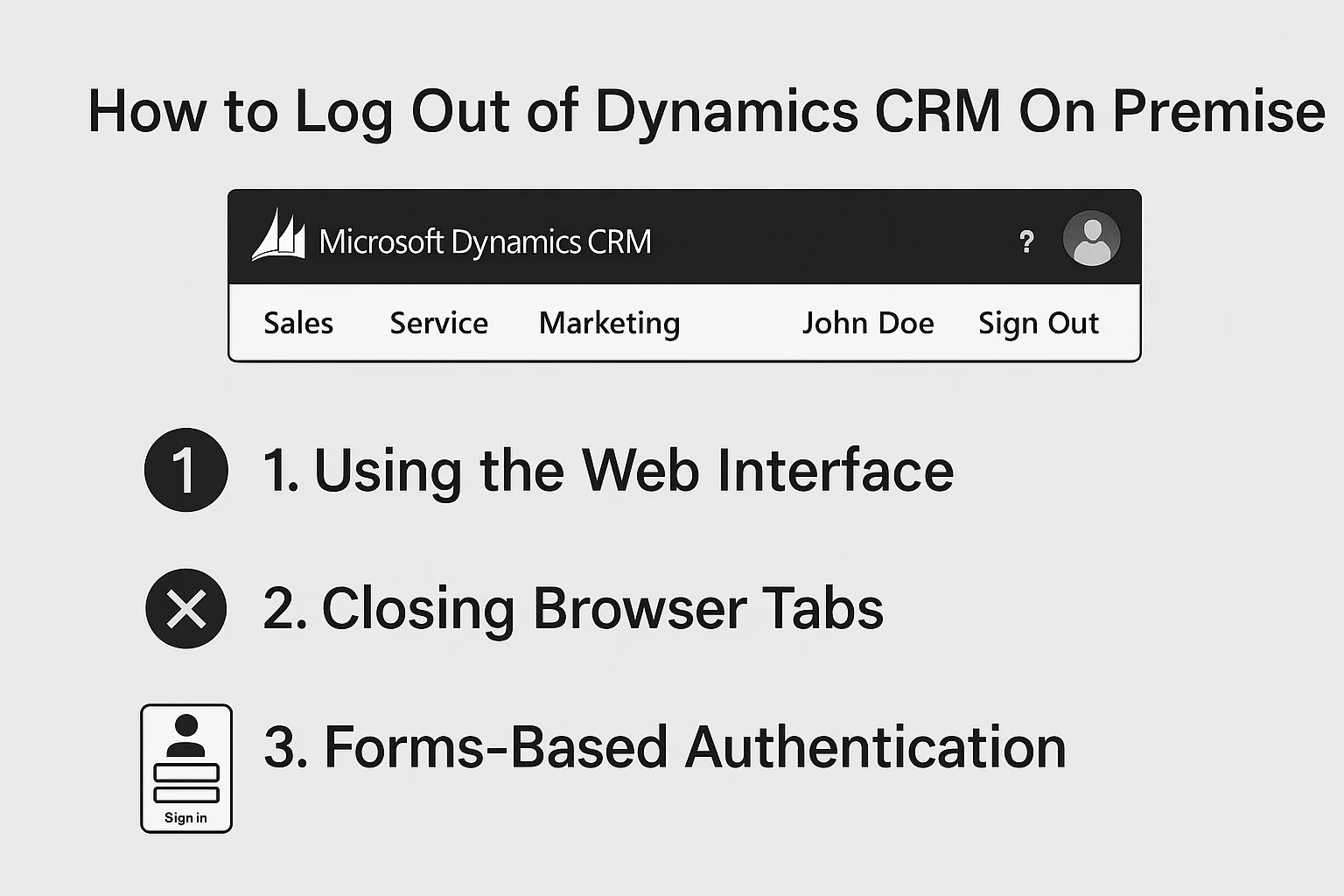
How to Log Out of Dynamics CRM On Premise
Unlike cloud-based Dynamics 365, the on-premise version uses Active Directory Authentication or forms-based authentication. The logout process depends on your setup:
1. Using the Web Interface
- Click on your profile name (top right corner).
- Select Sign Out.
- Clear browser cache if sessions seem to persist.
2. Closing Browser Tabs
For some deployments, simply closing the browser may not fully log you out. Session cookies may remain active. Clearing cache or cookies ensures a complete logout.
3. Forms-Based Authentication
If your system uses FBA, ensure that users:
- Select Log Out from the CRM menu.
- Close the browser completely.
- Reopen for a fresh login session.
Common Issues with Dynamics CRM On-Premise Logout
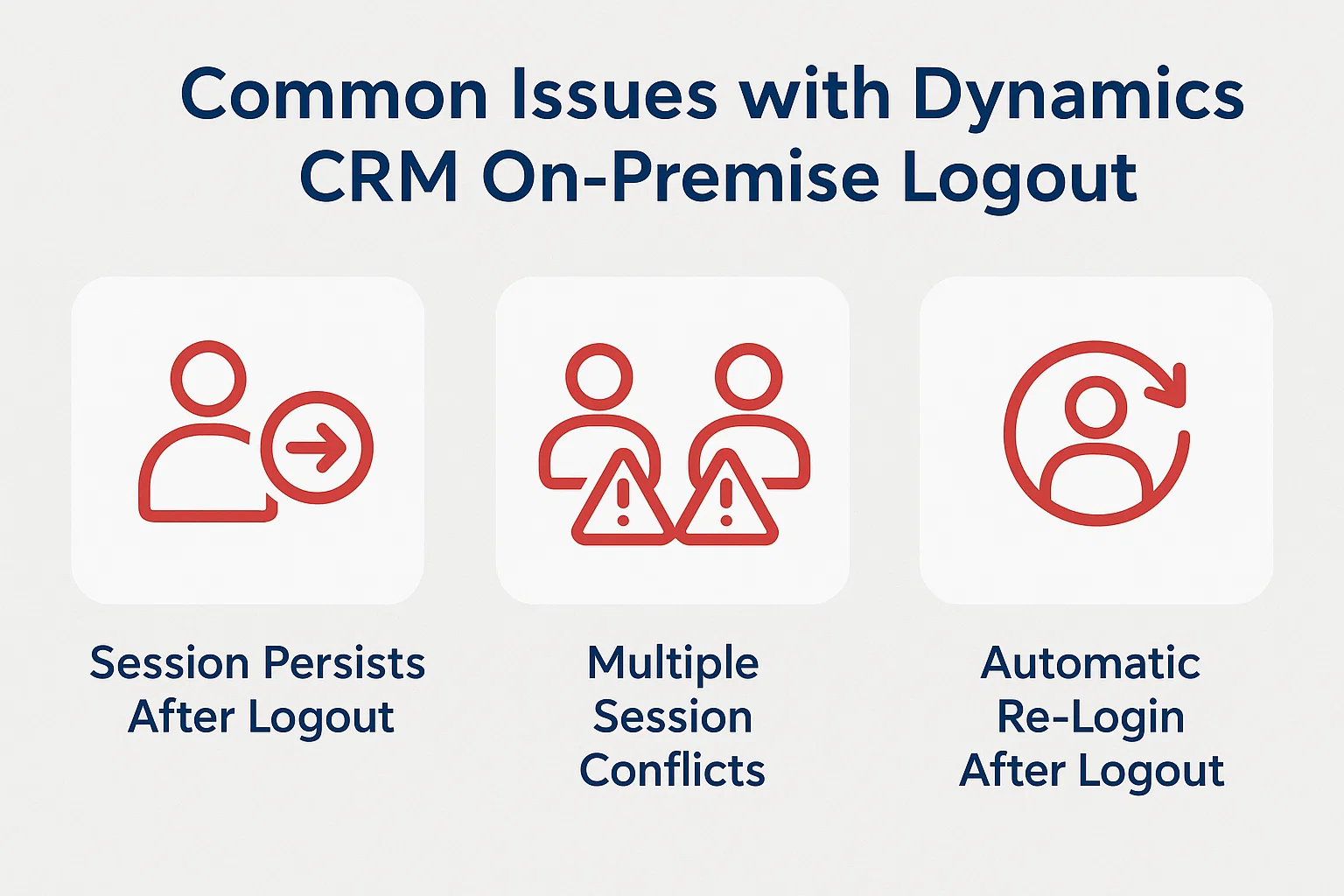
Even when following the right steps, users may face logout challenges. Here are frequent problems and fixes:
Session Persists After Logout
- Cause: Browser cache or cookies not cleared.
- Fix: Clear cookies, restart the browser, or adjust IIS timeout settings.
Multiple Session Conflicts
- Cause: Logging in from different devices without logging out.
- Fix: End all sessions from the server-side configuration.
Automatic Re-Login After Logout
- Cause: Integrated Windows Authentication auto-signs users back in.
- Fix: Use a different browser or disable automatic login in security settings.
Best Practices for Secure Logout
To reduce risks and improve user experience, administrators should:
- Configure session timeouts in IIS for better security.
- Train users on the correct logout procedure.
- Regularly clear browser caches on shared systems.
- Monitor user sessions through CRM Admin tools.
How SkySoft Connections Can Help
At SkySoft Connections, we specialize in Microsoft Dynamics CRM services, including on-premise and cloud deployments. Our team helps businesses:
- Optimize CRM security and session management
- Customize logout and timeout settings
- Provide seamless integration with Microsoft Power Platform
- Deliver ongoing technical support and training
Whether you’re struggling with logout issues or looking to improve your entire CRM workflow, SkySoft Connections is here to ensure your system runs smoothly and securely.
Final Tip:
Logging out properly in Dynamics CRM On-Premise may sound simple, but it directly impacts data security and system efficiency. By following best practices and seeking expert support when needed, you can maintain a safer, faster, and more reliable CRM environment.
Read more : ai in dynamics 365 shaping the future of business
FAQ’s
Logging out prevents unauthorized access, improves system performance, and helps maintain compliance.
This usually happens due to cached cookies or Windows Authentication automatically signing you back in.
Admins can configure session timeouts in IIS or CRM settings to automatically end inactive sessions.
Not always. Clearing cookies or using the sign-out option is recommended for a complete logout.