Table of Content
- Introduction: Why Real-Time Data Sync Matters
- What Is Dynamics 365 Change Tracking?
- How Power Automate Uses Change Tracking for Instant Triggers
- How to Enable Change Tracking in Dynamics 365
- Table: Difference Between Standard Polling vs Change Tracking
- Why Change Tracking Improves Power Automate Trigger Speed
- Skysoft Connections: Your Trusted Partner for Dynamics 365 + Power Automate
- Best Practices When Using Change Tracking for Power Automate
- Conclusion
- FAQ’s
Introduction: Why Real-Time Data Sync Matters
In the modern business world, users expect instant updates across all applications. Whether you’re syncing customer records, automating approvals, or triggering workflows, delays can disrupt operations. Dynamics 365 Change Tracking solves this by ensuring your data is always ready, always updated, and always in sync with your automation flows.
When paired with Microsoft Power Automate, Change Tracking enables near-real-time triggers—delivering consistent, reliable, and instantaneous automation. This blog breaks down how it works and how you can leverage it to supercharge your business applications.
What Is Dynamics 365 Change Tracking?
Change Tracking is a lightweight mechanism in Dynamics 365 Dataverse that identifies data changes—such as create, update, or delete—without scanning the entire database.
Key Benefits of Change Tracking
- Reduces API payloads
- Improves sync performance
- Minimizes system load
- Enables real-time or near-real-time triggers
- Supports incremental data refresh
This makes it perfect for Power Automate flows that need to respond instantly when data changes.
How Power Automate Uses Change Tracking for Instant Triggers
Power Automate doesn’t constantly “poll” the database. Instead, it leverages Change Tracking tokens to detect only what’s changed since the last check. As a result:
- Your flows trigger faster
- Workloads are reduced
- Performance becomes stable even at scale
Common Scenarios Where This Matters
- Instant notifications when a sales opportunity is updated
- Real-time approval workflows for customer onboarding
- Updating downstream systems such as ERP or reporting apps
- Syncing data between Power Apps and Dynamics 365
- Triggering automations when new leads enter the CRM
How to Enable Change Tracking in Dynamics 365
Follow these steps:
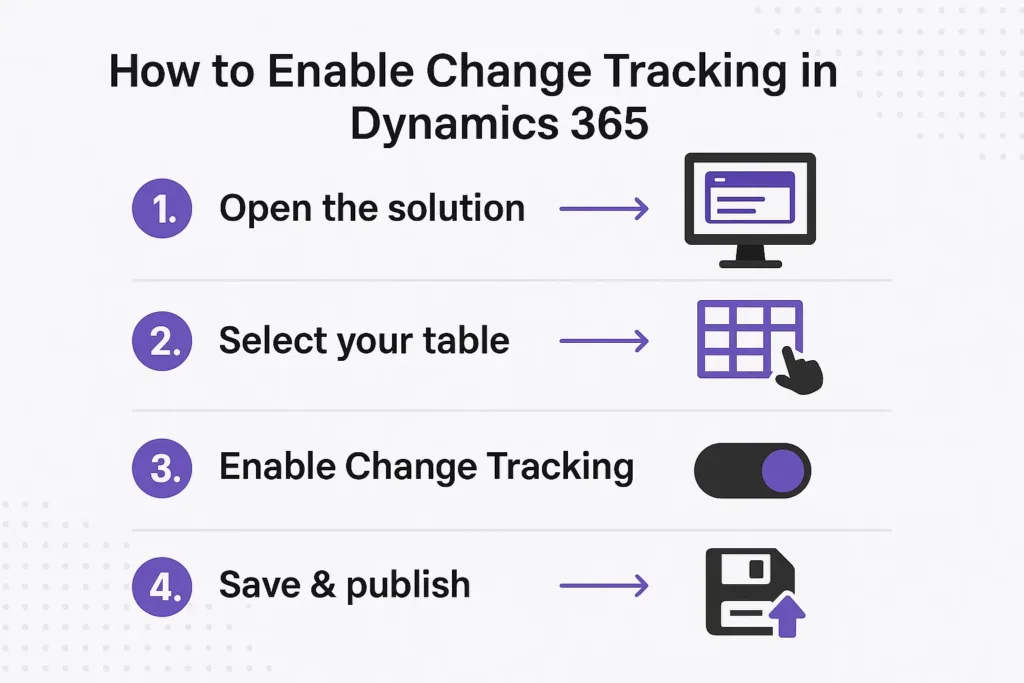
1. Open the solution
Navigate to Maker Portal → Tables.
2. Select your table
Choose the table where you want real-time sync.
3. Enable Change Tracking
Under Advanced options, toggle “Track changes”.
4. Save & publish
Power Automate can now detect these changes immediately.
Table: Difference Between Standard Polling vs Change Tracking
| Feature | Standard Polling | Change Tracking |
|---|---|---|
| Performance | Slow, resource-heavy | Lightweight & fast |
| Sync Frequency | Delayed (5–15 min) | Near-instant |
| API Consumption | High | Low |
| Scalability | Limited | Excellent |
| Best For | Simple apps | Enterprise-grade automation |
Why Change Tracking Improves Power Automate Trigger Speed
Change Tracking stores incremental changes rather than scanning the entire dataset. Consequently, Power Automate retrieves only what’s necessary, making automation responsive, efficient, and cost-effective.
Technical Advantages
- Uses delta tokens
- Reduces roundtrips
- Supports concurrency
- Maintains data accuracy
This creates a highly predictable environment for automations.
Skysoft Connections: Your Trusted Partner for Dynamics 365 + Power Automate
If you want flawless integrations, real-time automation, and scalable CRM solutions, Skysoft Connections delivers industry-grade implementation.
Our Key Services
- Dynamics 365 customization & optimization
- Power Apps development
- Advanced Power Automate workflows
- System architecture & integration
- Data migrations with best practices
- End-to-end inspection & asset management software
Why Teams Choose Skysoft Connections
- 40,000+ hours delivered on Upwork
- 100% job success (Top Rated Plus)
- Enterprise-level project delivery
- Strong expertise in Microsoft’s full business stack
We help you design automations that are fast, reliable, and future-proof.
Best Practices When Using Change Tracking for Power Automate
To get the highest performance:
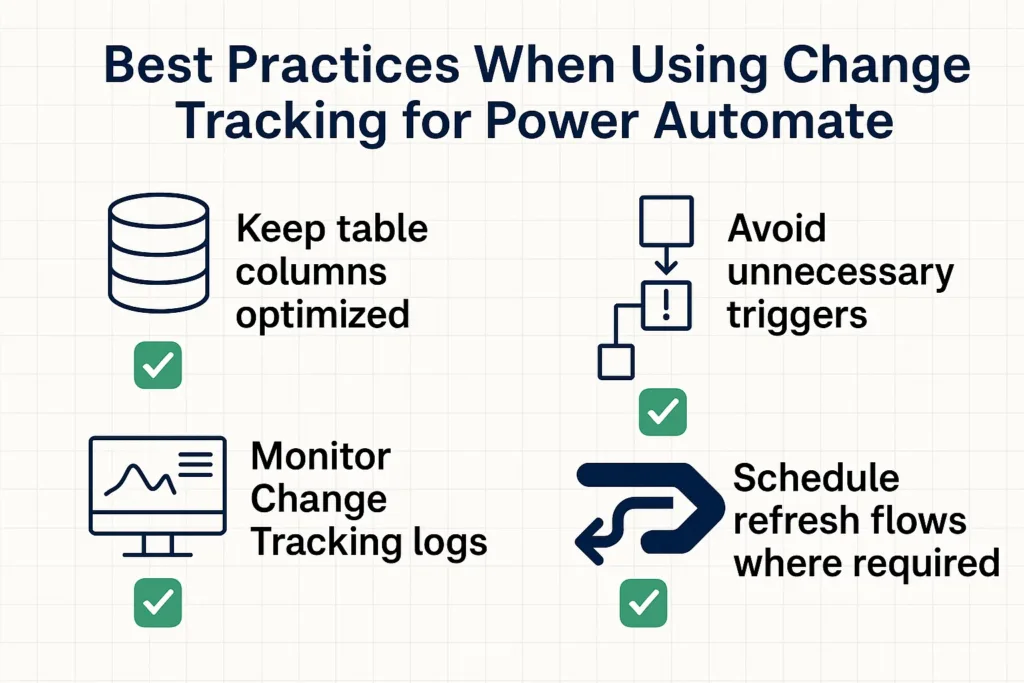
✔ Keep table columns optimized
Only track what you truly need.
✔ Avoid unnecessary triggers
Use filtering for conditions like:
- Status changes
- Value thresholds
- Specific record types
✔ Monitor Change Tracking logs
Ensure tokens don’t expire and sync remains smooth.
✔ Schedule refresh flows where required
Some logic may require backup refresh cycles.
Conclusion
Dynamics 365 Change Tracking is one of the most powerful features for enabling fast and reliable Power Automate triggers. When configured properly, it unlocks responsive, efficient, and scalable automation that keeps your business running in real time.
With the right implementation partner—such as Skysoft Connections—you can build a future-ready automation ecosystem that transforms your processes and boosts operational efficiency.
If you’re ready to implement fast, intelligent business automation, Skysoft Connections can help you every step of the way.
Read more : custom api gateway power apps dynamics 365 integration
FAQ’s
Change Tracking detects only updated records, allowing Power Automate to trigger faster without scanning the entire database.
No. You should enable Change Tracking only for tables that require real-time sync or automation to keep your system efficient.
Yes. Since it retrieves incremental changes, it significantly lowers API calls, improving performance and reducing resource consumption.
 is a software solution company that was established in 2016. Our quality services begin with experience and end with dedication. Our directors have more than 15 years of IT experience to handle various projects successfully. Our dedicated teams are available to help our clients streamline their business processes, enhance their customer support, automate their day-to-day tasks, and provide software solutions tailored to their specific needs. We are experts in Dynamics 365 and Power Platform services, whether you need Dynamics 365 implementation, customization, integration, data migration, training, or ongoing support.