Table of Content
Sales teams frequently face challenges not in the act of selling, but rather in the administrative hurdles that hinder their progress. Copilot for Sales, which is integrated into Dynamics 365, Outlook, and Teams, alleviates this friction by incorporating the CRM directly into the tools that representatives utilize on a daily basis.
This is a tactical playbook outlining how a sales team can leverage Copilot to expedite each phase of the deal cycle.
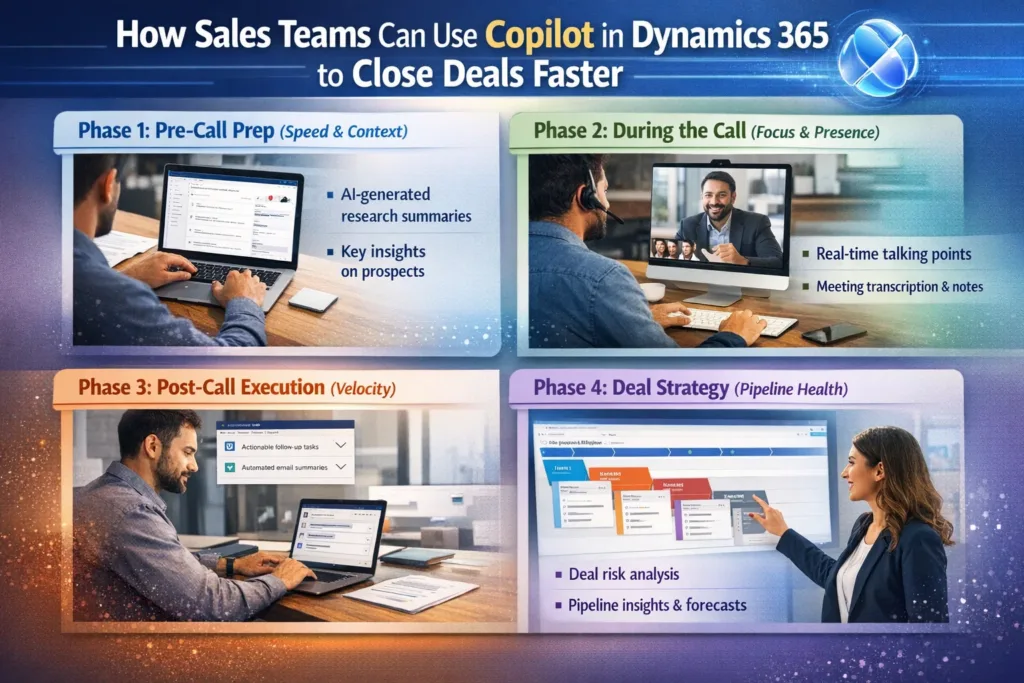
Phase 1: Pre-Call Prep (Speed & Context)
Objective: Remove the 30-minute “research panic” prior to a meeting.
Rather than sifting through LinkedIn, past emails, and CRM notes to recall context, a representative can utilize Copilot to create a “Meeting Prep Brief” in an instant.
In Outlook Calendar: When a representative selects an upcoming meeting, Copilot produces a summary card that displays:
- The last 3 emails exchanged with this client.
- The current status of the Opportunity in Dynamics 365 (for instance, “Negotiation Stage”).
- Any open support tickets (essential for preventing blind spots if the client is upset).
Outcome: The representative enters the meeting fully prepared in 2 minutes, instead of 20.
Phase 2: During the Call (Focus & Presence)
Objective: Cease note-taking and begin focusing on listening.
Sales representatives frequently overlook verbal signals as they are occupied with typing. Copilot enables them to be fully engaged.
In Microsoft Teams:
- Real-Time Transcription: Copilot transcribes the meeting as it happens.
- Live Queries: During the meeting, if a client asks a technical question, the rep can privately ask Copilot in the chat sidebar: “What is the warranty period for product X?” Copilot scans internal SharePoint documents and gives an answer instantly, allowing the rep to handle objections without saying “I’ll get back to you.”
Result: Faster objection handling and deeper relationship building.
Phase 3: Post-Call Execution (Velocity)
Objective: Seize the moment while the opportunity is ripe.
This is the point where negotiations frequently falter—the interval between the initial call and the subsequent follow-up.
The “One-Click” Follow-Up: Right after the Teams call concludes, Copilot produces a Meeting Recap that encompasses:
- A recap of the conversation.
- A compilation of agreed-upon next steps (Action Items).
- Draft Email: Copilot composes a formal follow-up email beginning with “Thank you for the call, [Name]. As we discussed, here are…” followed by the specific action items derived from the transcript.
CRM Sync: With a single click, the representative can store this summary and the email directly into Dynamics 365. No manual data entry is necessary.
Outcome: The follow-up is dispatched 5 minutes post-call, rather than 24 hours later, ensuring that the momentum remains strong.
Phase 4: Deal Strategy (Pipeline Health)
Objective: Concentrate on the deals that are likely to close.
Managers and representatives frequently squander time on “zombie deals.” Copilot offers unbiased reality assessments.
Opportunity Summaries: Within Dynamics 365, Copilot features an “Insight Banner” at the top of each Opportunity record. This banner encapsulates the deal history and highlights potential risks (for instance, “No activity in 14 days” or “Sentiment in last email was negative”).
Natural Language Queries: Rather than creating intricate reports, a sales Manager can simply inquire: “Display all opportunities set to close this month that have not had a meeting in the past week.” Copilot generates the list immediately, enabling the team to focus on at-risk revenue.
Summary Checklist: The “High-Velocity” Workflow
| Action | Traditional Workflow | Copilot Workflow | Time Saved |
| Meeting Prep | Search CRM + Email + LinkedIn | Review Copilot “Prep Card” in Outlook | ~20 mins |
| Note Taking | Scribbling notes manually | Automated Transcription + Summary | ~100% effort |
| Follow-Up | Writing email from scratch | Review & Send AI-Drafted Email | ~15 mins |
| Data Entry | Manual Copy-Paste to CRM | “Save to Dynamics” button in Outlook | ~10 mins |
Next Step: For quick results, ask your sales team to utilize the “Email Reply” feature in Outlook initially.
- Begin by opening an email from a customer in Outlook.
- Access the Copilot for Sales pane.
- Select “Draft a Reply” and pick a scenario (for instance, “Address a concern” or “Propose a meeting”).
- Observe how it leverages CRM data to instantly personalize the response.
Summary
Copilot in Dynamics 365 Sales accelerates deal closure by:
- Reducing manual sales tasks.
- Providing actionable insights and real-time recommendations.
- Enhancing team collaboration and communication.
- Automating prep and follow-up work.
- Enabling smarter prioritization of leads and opportunities.
By shifting the focus from administrative overhead to customer engagement and strategic action, Copilot helps sales organizations close deals faster and grow revenue more predictably.
Read more : power apps canvas apps 10 real business problems solved
FAQ’s
Copilot automates meeting prep, note-taking, follow-ups, and CRM updates, allowing reps to focus on conversations and move deals forward quicker.
Yes. Copilot is embedded in Outlook and Teams, providing email drafting, meeting summaries, real-time insights, and CRM context without switching tools.
Absolutely. Copilot highlights at-risk opportunities, summarizes deal health, and answers natural-language queries to improve pipeline visibility and forecasting.
 is a software solution company that was established in 2016. Our quality services begin with experience and end with dedication. Our directors have more than 15 years of IT experience to handle various projects successfully. Our dedicated teams are available to help our clients streamline their business processes, enhance their customer support, automate their day-to-day tasks, and provide software solutions tailored to their specific needs. We are experts in Dynamics 365 and Power Platform services, whether you need Dynamics 365 implementation, customization, integration, data migration, training, or ongoing support.