
The Power Platform Solution Pipeline is a powerful feature that streamlines the application lifecycle management (ALM) process in Microsoft Power Platform. It allows makers and administrators to move solutions seamlessly between environments (Dev → Test → UAT → Production) with minimal manual effort, ensuring consistency, governance, and faster delivery of apps, flows, and components.
In this article, we’ll explore the concept of a solution pipeline, why it matters, and a step-by-step approach to building one.
Why Use a Solution Pipeline?
Organizations that adopt Power Platform often struggle with manually exporting and importing solutions across environments. This can lead to:
- Version mismatches between environments.
- Risk of overwriting components accidentally.
- Time-consuming manual deployment processes.
A solution pipeline automates these steps, ensuring:
- Consistency across environments
- Reduced human error
- Faster releases with governance
- Alignment with DevOps best practices
Steps to Set Up a Power Platform Solution Pipeline
Step 1: Prepare Your Environments
Before creating the pipeline, ensure you have:
- A Development Environment – where makers build and test solutions.
- A Test/UAT Environment – for validation and user acceptance testing.
- A Production Environment – for live use.
Tip: Use Managed Solutions in higher environments (Test/UAT/Prod) to maintain stability and prevent direct edits.
Step 2: Enable Deployment Settings
- In the Power Platform Admin Center, navigate to your environments.
- Ensure that Solution Management and Environment Permissions are configured.
- Assign appropriate roles (e.g., Power Platform Admin, Deployment Manager).
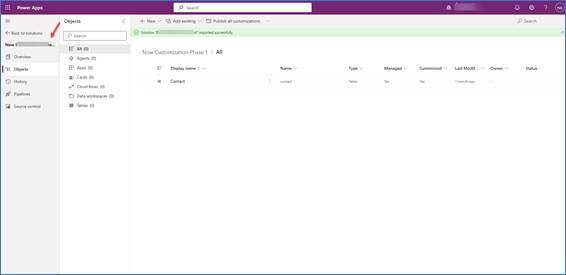
Step 3: Create Your Solution in Development
- In the Power Apps, create an Unmanaged Solution.
- Add required components: apps, flows, tables, processes, custom connectors, etc.
- Regularly version and save the solution.
Step 4: Export and Import Solutions
Traditionally, makers export/import manually, but pipelines automate this:
- Export solution from Dev (Unmanaged).
- Convert to Managed Solution for higher environments.
- Import into Test, then Prod after validation.
With a pipeline, these steps are automated.
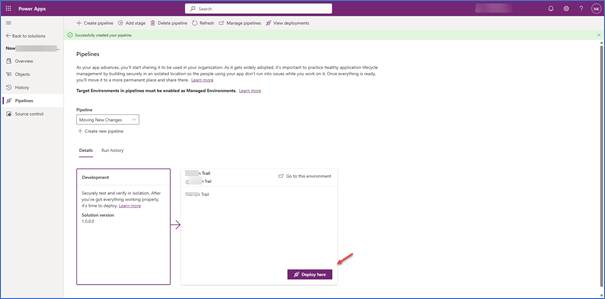
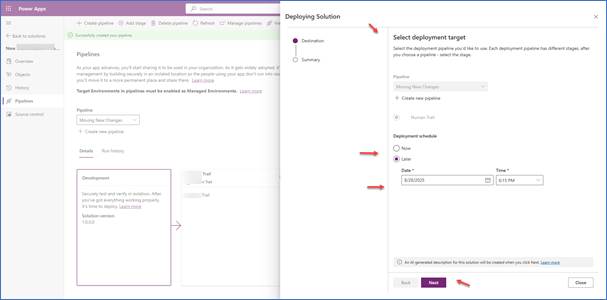
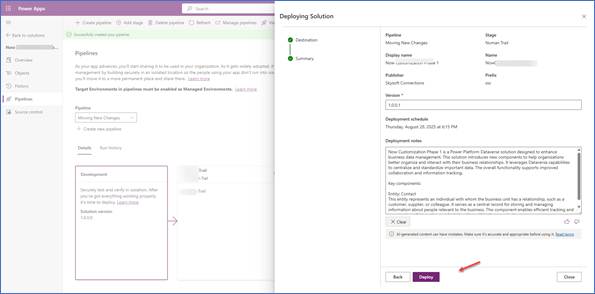
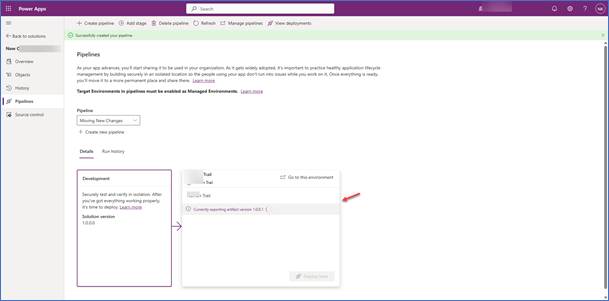
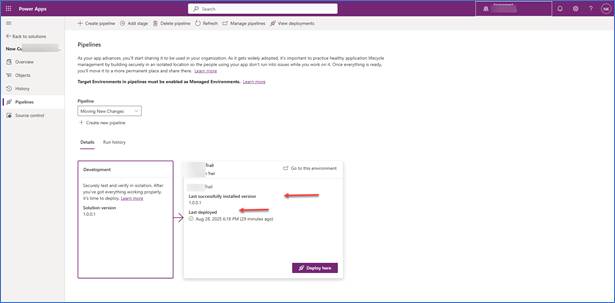
Step 5: Configure the Solution Pipeline
Microsoft provides a default pipeline template that can be enabled:
- Go to Power Platform Pipelines app (available in Dataverse).
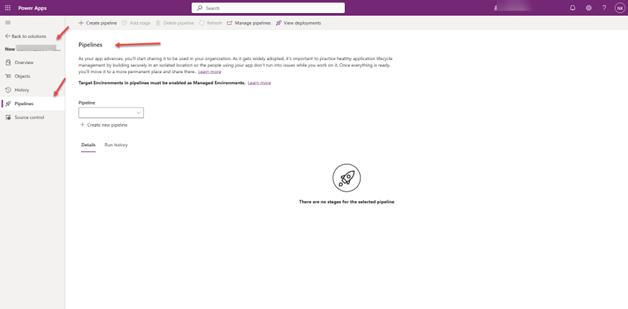
2. Create a new pipeline and define Source (Dev) and Target (Test/Prod) environments.
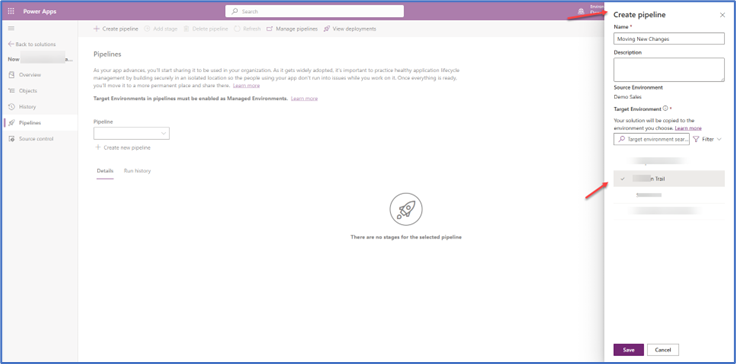
- Select stages (Dev → UAT).
- Configure deployment settings (e.g., connection references, environment variables if any).
Step 6: Automate with Approvals (Optional)
For governance, add an approval step if any before deploying to higher environments if not then don`t need for any approval.
- Example: A manager or admin must approve before deployment to Production.
- This can be integrated with Power Automate approvals or Azure DevOps gates.
Step 7: Test and Validate
- Deploy a sample solution via the pipeline.
- Validate that apps, flows, and customizations work correctly in Test/UAT.
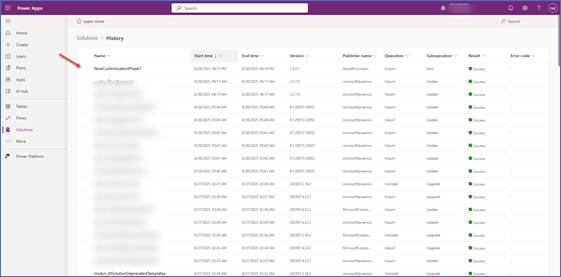
- Ensure connections and environment variables are updated correctly if needed.
Step 8: Deploy to Production
Once validated, promote the solution to Production using the pipeline.
- Changes are tracked and version-controlled.
- Rollbacks are easier if managed solutions are used.
Best Practices for Power Platform Pipelines
- Use Managed Solutions in Test and Production.
- Version solutions consistently (e.g., 1.0.0.1 → 1.0.0.2).
- Document environment variables to avoid broken connections.
- Apply approvals for critical deployments.
- Monitor pipelines using Power Platform Admin Center analytics.
Conclusion
The Power Platform Solution Pipeline empowers organizations to adopt a structured and automated ALM process, reducing manual errors and accelerating solution delivery. By following the steps outlined above, you can ensure that your apps and customizations move smoothly from Development to Production, while maintaining governance and control.
Read more : Dynamics 365 CRM Field Resources: A Complete Guide
FAQ’s
A Power Platform Solution Pipeline is a built-in tool that automates the process of moving solutions between environments (Dev → Test → UAT → Production), ensuring consistency, governance, and faster delivery.
Using a pipeline reduces manual effort, minimizes human error, prevents version mismatches, and aligns deployments with DevOps best practices.
No, the pipeline is a low-code feature provided by Microsoft Power Platform, making it accessible for both admins and makers without advanced coding knowledge.