Table of Content
- 1. With()
- 2. ForAll()
- 3. Sequence()
- 4. Table()
- 5. Parse()
- 6. AsType()
- 7. IsType()
- 8. Concurrent()
- 9. Error()
- 10. IfError()
- 11. IsError()
- 12. AddColumns()
- 13. DropColumns()
- 14. RenameColumns()
- 15. ShowColumns()
- 16. Shuffle()
- 17. HashTags()
- 18. PlainText()
- 19. EncodeUrl()
- 20. Char()
- 21. UniChar()
- 22. JSON()
- 23. ParseJSON()
- 24. First() and Last()
- 25. Index()
- 26. Distinct()
- 27. GroupBy()
- 28. Ungroup()
- 29. Split()
- 30. MatchAll()
- 31. IsMatch()
- 32. Boolean()
- 33. Coalesce()
- 34. IsBlank() and IsEmpty()
- 35. IsBlankOrError()
- 36. Validate()
- 37. LoadData() and SaveData()
- 38. Today() and Now()
- 39. TimeZoneOffset()
- 40. Clock.AmPm() and Clock.IsClock24()
- Best Practices for Using Advanced Functions
- Conclusion
- FAQ’s
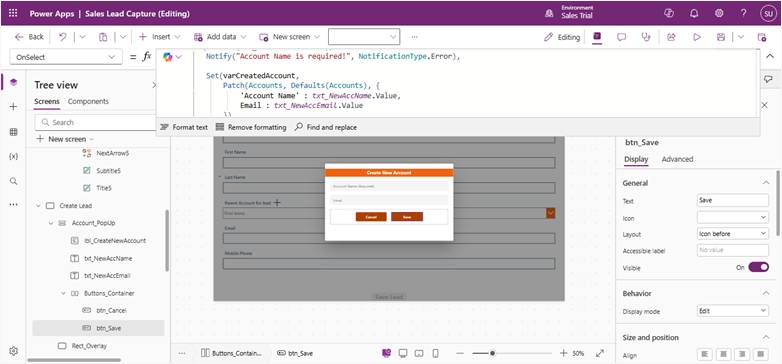
Power FX is the low-code language that powers Canvas Apps in Microsoft Power Platform. While most developers are familiar with basic functions like Set, Navigate, and Patch, there’s a treasure trove of advanced functions that can significantly enhance your app’s capabilities. This guide explores 40 powerful functions that often fly under the radar but can transform how you build Canvas Apps.
1. With()
Creates a named formula that can be referenced within its scope, perfect for complex calculations without repeating code.
With(
{totalPrice: Sum(Cart.Price), taxRate: 0.08},
totalPrice + (totalPrice * taxRate)
)
2. ForAll()
Evaluates a formula for all records in a table, enabling bulk operations and transformations.
ForAll(
Products,
Patch(Inventory, LookUp(Inventory, ProductID = ThisRecord.ID), {Stock: ThisRecord.Stock – 1})
)
3. Sequence()
Generates a single-column table of sequential numbers, incredibly useful for creating loops or test data.
Sequence(10, 100, 5) // Creates 10 numbers starting at 100, incrementing by 5
4. Table()
Creates an inline table without needing a data source, perfect for static dropdown options or lookup tables.
Table(
{Status: “Active”, Color: RGBA(0,255,0,1)},
{Status: “Inactive”, Color: RGBA(255,0,0,1)},
{Status: “Pending”, Color: RGBA(255,165,0,1)}
)
5. Parse()
Converts text strings into numbers, respecting locale settings and returning a result even with formatting.
Parse(Text1.Text, “en-US”) // Handles “$1,234.56” correctly
6. AsType()
Explicitly converts polymorphic data to a specific type, essential when working with Dataverse polymorphic lookups.
AsType(Gallery1.Selected, [@Contacts]).FullName
7. IsType()
Checks if a value is of a specific type before performing operations on it.
If(IsType(Gallery1.Selected, [@Contacts]),
“This is a contact”,
“This is something else”)
8. Concurrent()
Executes multiple operations simultaneously, dramatically improving performance for independent actions.
Concurrent(
Collect(CollectionA, DataSourceA),
Collect(CollectionB, DataSourceB),
Collect(CollectionC, DataSourceC)
)
9. Error()
Creates custom error objects that can be caught and handled, enabling better error management.
If(Amount < 0,
Error({Kind: ErrorKind.Validation, Message: “Amount must be positive”}),
SubmitForm(Form1)
)
10. IfError()
Handles errors gracefully without crashing your app, providing fallback values or actions.
IfError(
Value(TextInput1.Text),
0, // Default value if conversion fails
FirstError.Message // Optionally capture error message
)
11. IsError()
Checks whether an expression resulted in an error before proceeding with logic.
If(IsError(Value(TextInput1.Text)),
Notify(“Invalid number format”, NotificationType.Error),
Set(varNumber, Value(TextInput1.Text))
)
12. AddColumns()
Adds calculated columns to a table dynamically without modifying the original data source.
AddColumns(
Orders,
“TotalWithTax”, Price * Quantity * 1.08,
“Discount”, If(Quantity > 10, 0.1, 0)
)
13. DropColumns()
Removes unnecessary columns from a table to improve performance and clarity.
DropColumns(Employees, “SensitiveData”, “InternalNotes”, “TempField”)
14. RenameColumns()
Changes column names in a table, useful when integrating with external systems with different naming conventions.
RenameColumns(CustomerData, “FullName”, “Name”, “EmailAddr”, “Email”)
15. ShowColumns()
Returns only specific columns from a table, creating a cleaner subset of data.
ShowColumns(Products, “Name”, “Price”, “Category”)
16. Shuffle()
Randomizes the order of records in a table, perfect for quizzes or randomized displays.
Shuffle(QuestionBank)
17. HashTags()
Extracts hashtags from text as a table, enabling social media-style tagging features.
HashTags(PostTextInput.Text)
18. PlainText()
Strips HTML formatting from rich text, useful when working with rich text editors.
PlainText(RichTextEditor1.HtmlText)
19. EncodeUrl()
Properly encodes URLs to handle special characters, essential for API calls and web requests.
“https://api.example.com/search?query=” & EncodeUrl(SearchBox.Text)
20. Char()
Returns a character from a Unicode value, useful for inserting special characters.
Char(10) // Line feed
Char(13) // Carriage return
Char(34) // Double quote
21. UniChar()
Returns a character from a Unicode code point, supporting extended character sets.
UniChar(8364) // Euro symbol €
22. JSON()
Converts Power FX data structures to JSON strings for API integration or storage.
JSON(Gallery1.AllItems)
23. ParseJSON()
Converts JSON strings back into Power FX tables and records.
ParseJSON(varJSONString).customers
24. First() and Last()
Retrieves the first or last record from a table without iteration.
First(Sort(Orders, OrderDate, Descending)).OrderID
25. Index()
Returns a specific record from a table by its position, useful when working with sequences.
Index(MyCollection, 3) // Gets the third record
26. Distinct()
Returns unique values from a column, perfect for creating dynamic filters.
Distinct(Products, Category)
27. GroupBy()
Groups records by one or more columns, enabling aggregation and summary views.
GroupBy(Sales, “Region”, “SalesByRegion”)
28. Ungroup()
Flattens grouped data back into individual records.
Ungroup(GroupedData, “SalesByRegion”)
29. Split()
Divides text into a table based on a delimiter, essential for parsing data.
Split(EmailAddresses.Text, “;”)
30. MatchAll()
Finds all occurrences of a pattern in text using regular expressions.
MatchAll(InputText.Text, “\b[A-Z0-9._%+-]+@[A-Z0-9.-]+\.[A-Z]{2,}\b”)
31. IsMatch()
Validates whether text matches a specific pattern, perfect for input validation.
IsMatch(EmailInput.Text, Email) // Built-in email pattern
IsMatch(PhoneInput.Text, “\d{3}-\d{3}-\d{4}”) // Custom pattern
32. Boolean()
Converts various data types to boolean values, handling more cases than simple comparisons.
Boolean(“true”) // Returns true
Boolean(1) // Returns true
Boolean(“”) // Returns false
33. Coalesce()
Returns the first non-blank value from a list of arguments.
Coalesce(User().FullName, User().Email, “Guest User”)
34. IsBlank() and IsEmpty()
IsBlank checks for blank values while IsEmpty checks for empty tables.
If(IsBlank(TextInput1.Text), Notify(“Field required”))
If(IsEmpty(Gallery1.AllItems), Set(varNoData, true))
35. IsBlankOrError()
Combines blank and error checking in a single function.
IsBlankOrError(Value(TextInput1.Text))
36. Validate()
Checks whether a record or data source is valid according to defined rules.
Validate(Form1)
37. LoadData() and SaveData()
Persists collections to local device storage for offline scenarios.
SaveData(OrdersCollection, “LocalOrders”)
LoadData(OrdersCollection, “LocalOrders”, true)
38. Today() and Now()
While commonly known, their advanced usage with time zones is often overlooked.
Now() + Time(5, 0, 0) // 5 hours from now
Today() – 30 // 30 days ago
39. TimeZoneOffset()
Calculates the time difference between UTC and local time or between time zones.
TimeZoneOffset(Now()) // Current offset
TimeZoneOffset(Today(), “America/New_York”)
40. Clock.AmPm() and Clock.IsClock24()
Determines the user’s time format preferences for proper time display.
If(Clock.IsClock24(),
Text(Now(), “HH:mm”),
Text(Now(), “hh:mm tt”)
)
Best Practices for Using Advanced Functions
Performance Optimization
- Use Concurrent() for independent operations to reduce load times
- Leverage With() to avoid recalculating the same expression multiple times
- Use ShowColumns() or DropColumns() to reduce data transfer overhead
Error Handling
- Always wrap potentially failing operations in IfError() or IsError()
- Use Error() to create meaningful custom error messages
- Implement IsBlankOrError() for comprehensive input validation
Data Transformation
- Combine AddColumns(), ForAll(), and With() for complex calculations
- Use GroupBy() and Ungroup() for hierarchical data visualization
- Leverage JSON() and ParseJSON() for API integration
Code Maintainability
- Use With() to make complex formulas more readable
- Create inline lookup tables with Table() instead of hidden data sources
- Use Sequence() with ForAll() to create iterative logic
Conclusion
These 40 advanced Power FX functions represent the difference between basic Canvas Apps and sophisticated, enterprise-grade solutions. By mastering these functions, you’ll write more efficient code, handle errors gracefully, transform data dynamically, and create better user experiences.
The key to becoming proficient with these functions is experimentation. Start incorporating them into your apps one at a time, understand their behavior, and soon you’ll find yourself naturally reaching for these powerful tools whenever you face a complex requirement.
Remember that Power FX is constantly evolving, so stay updated with Microsoft’s documentation and community resources to discover new functions and capabilities as they’re released.
FAQ’s
Advanced Power FX functions help developers improve performance, handle errors, and build scalable, enterprise-grade Canvas Apps.
They allow cleaner formulas, better data transformation, faster execution, and improved user experience in Power Platform apps.
Yes, beginners can gradually use advanced Power FX functions once they understand basic Canvas App concepts.
 is a software solution company that was established in 2016. Our quality services begin with experience and end with dedication. Our directors have more than 15 years of IT experience to handle various projects successfully. Our dedicated teams are available to help our clients streamline their business processes, enhance their customer support, automate their day-to-day tasks, and provide software solutions tailored to their specific needs. We are experts in Dynamics 365 and Power Platform services, whether you need Dynamics 365 implementation, customization, integration, data migration, training, or ongoing support.